¶ Roles & Permissions
For admins. This page explains how access works across Planally, from the whole organisation down to a single activity. The step-by-step instructions for each setting stay on their own pages; this page shows how they fit together.
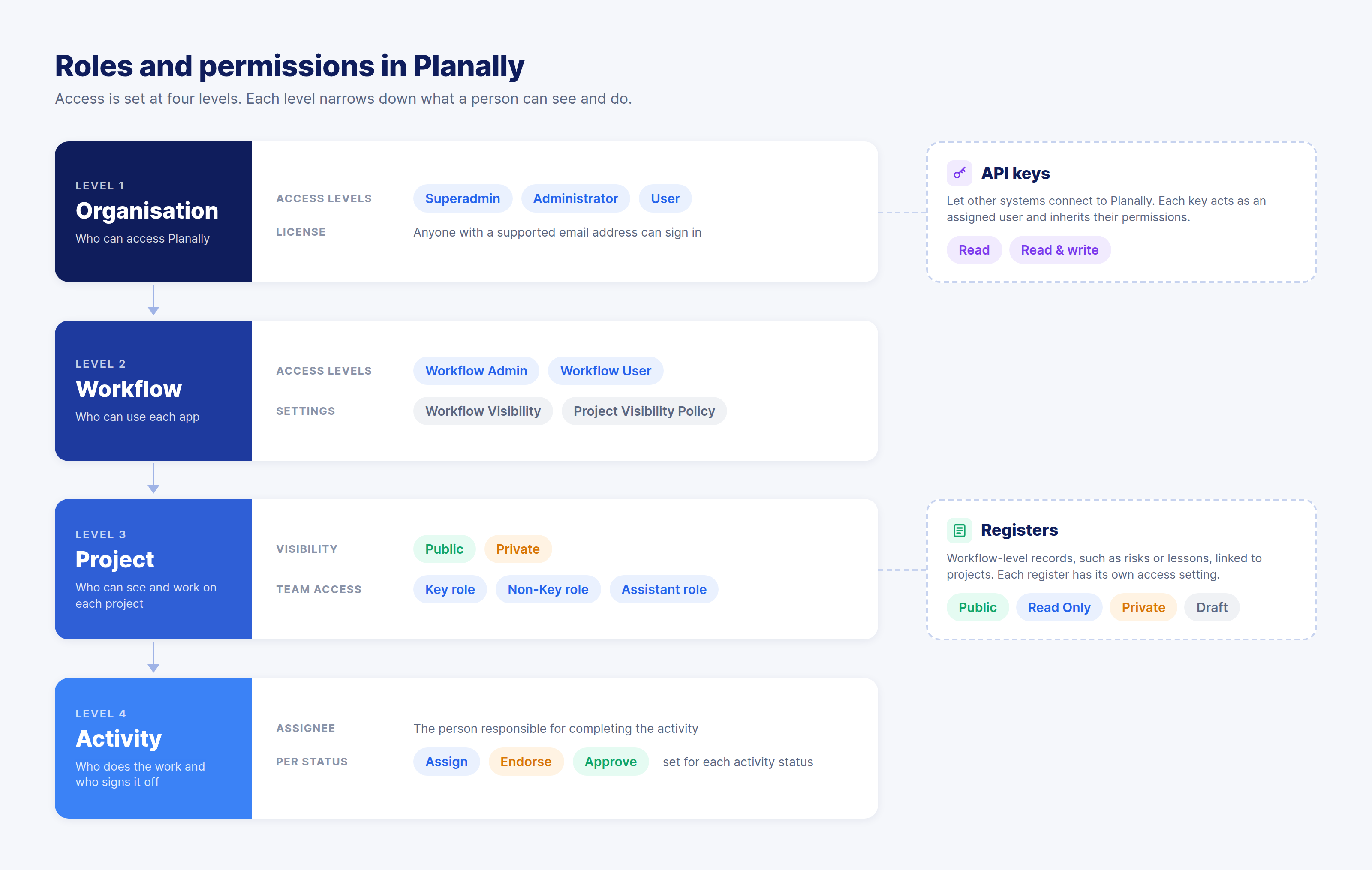
Governed execution depends on the right people having the right access, no more and no less. In Planally, permissions aren't one long list. They stack in levels: what someone can do in an activity depends on their project role, which depends on their access to the workflow, which depends on their role in the organisation.
¶ Why This Matters
- Avoid bottlenecks: people can act without waiting for access.
- Protect sensitive work: private projects and registers stay private.
- Keep governance predictable: sign-offs happen where the roadmap says they should.
- Answer "why can't they see it?" quickly by checking each level in turn.
¶ How the Levels Fit Together
| Level | Decides | Set by | Where |
|---|---|---|---|
| 1. Organisation | Who can use Planally, and who administers it | The Planally team (Superadmin) | Configuration → Users (organisation side menu) |
| 2. Workflow | Who configures a workflow, and who can see all of it | Workflow Admins | Configuration → Workflow → Workflow Users |
| 3. Project | Who is on the project team, and what they control | Key Role users | Project → Team |
| 4. Activity | Who is assigned, and whose sign-off moves it forward | Key Role users, or set in advance on the roadmap | Activity → Permissions; Roadmap → Permissions |
Each level works inside the one above it. A person needs access at the project level before an activity permission means anything to them.
¶ 1. Organisation Level
Every user has a Type and, to work in projects, a licence.
| Type | What they can do |
|---|---|
| Superadmin | Held by the Planally team. Everything an Administrator can do, plus manage users (User Management), assign licences, create and manage API keys, and set a project's status to Draft. Contact support@planally.com for any of these. |
| Administrator | Add workflows and workspaces, open the organisation's Configuration (user dashboard and organisation settings), and administer every workflow. |
| User | Use the workflows and projects they have access to. |
- Licensed users can create and work in projects. Unlicensed users can request a licence from their profile menu (see Getting Started).
- Superadmins and Administrators see every workflow and project with full access.
¶ 2. Workflow Level
¶ Workflow roles
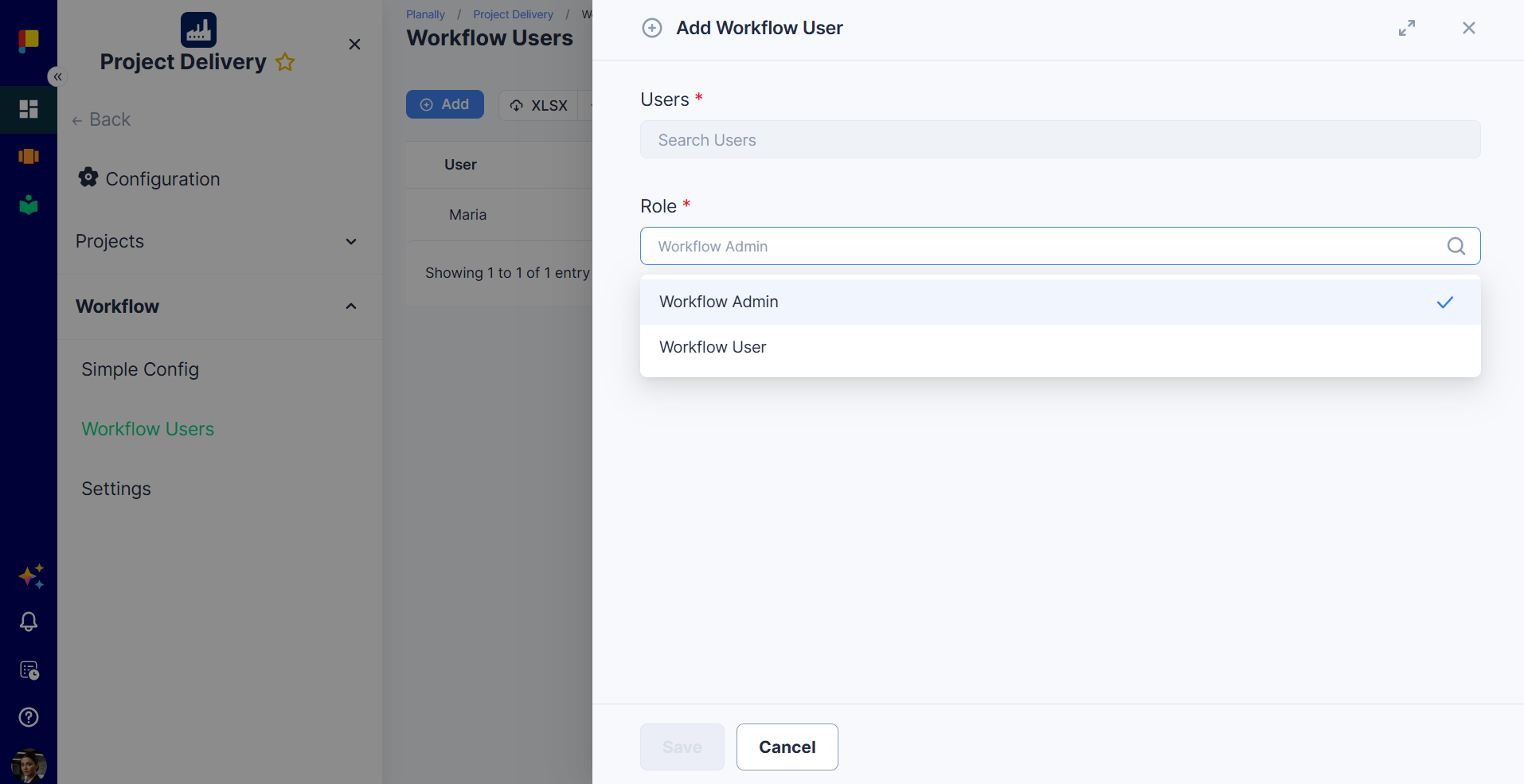
Added in Configuration → Workflow → Workflow Users. See Creating & Configuring Workflows.
| Role | What they can do |
|---|---|
| Workflow Admin | Configure the workflow (phases, forms, templates, roadmaps, roles, registers, settings) and work in every project in it with full access, including private projects. |
| Workflow User | See every project in the workflow, including private projects, without being added to each one. Read-only, unless they also hold a Key Role in a specific project. |
¶ Workflow settings that shape access
- Workflow Visibility: Public (everyone in the organisation can see the workflow) or Private (only invited users).
- Project Visibility Policy: Per Project (each project chooses), Public (every project public), or Private (every project private). Set when the workflow is created and can't be changed.
¶ 3. Project Level
¶ Visibility
- Public: everyone who can see the workflow can see the project and request access.
- Private: only the project team, Workflow Admins, Workflow Users, and administrators can see it.
¶ Team access and roles
Managed from the project's Team button. See Creating Projects.
| Role type | What they can do |
|---|---|
| Key Role | Full control of the project: settings, team, activities, and private registers. |
| Non-Key Role | See everything in the project, and update the activities assigned to them. |
| Assistant Role | A supporting role, flagged for clarity in the team structure. |
¶ Registers
Each register has its own access level, set by Workflow Admins. See Setting Up Registers.
| Access level | Who can view | Who can add, update, and delete records |
|---|---|---|
| Public | Everyone with access to the project | Everyone with access to the project |
| Read Only | Everyone with access to the project | Nobody |
| Private | Key Role users, Workflow Admins, administrators | The same people |
| Draft | Nobody in projects | Nobody (set-up only) |
¶ 4. Activity Level
¶ Assignee
Every planned activity has an Assignee: a person or a role responsible for it. Assignees are notified and can update the activity.
¶ Assign, endorse, and approve
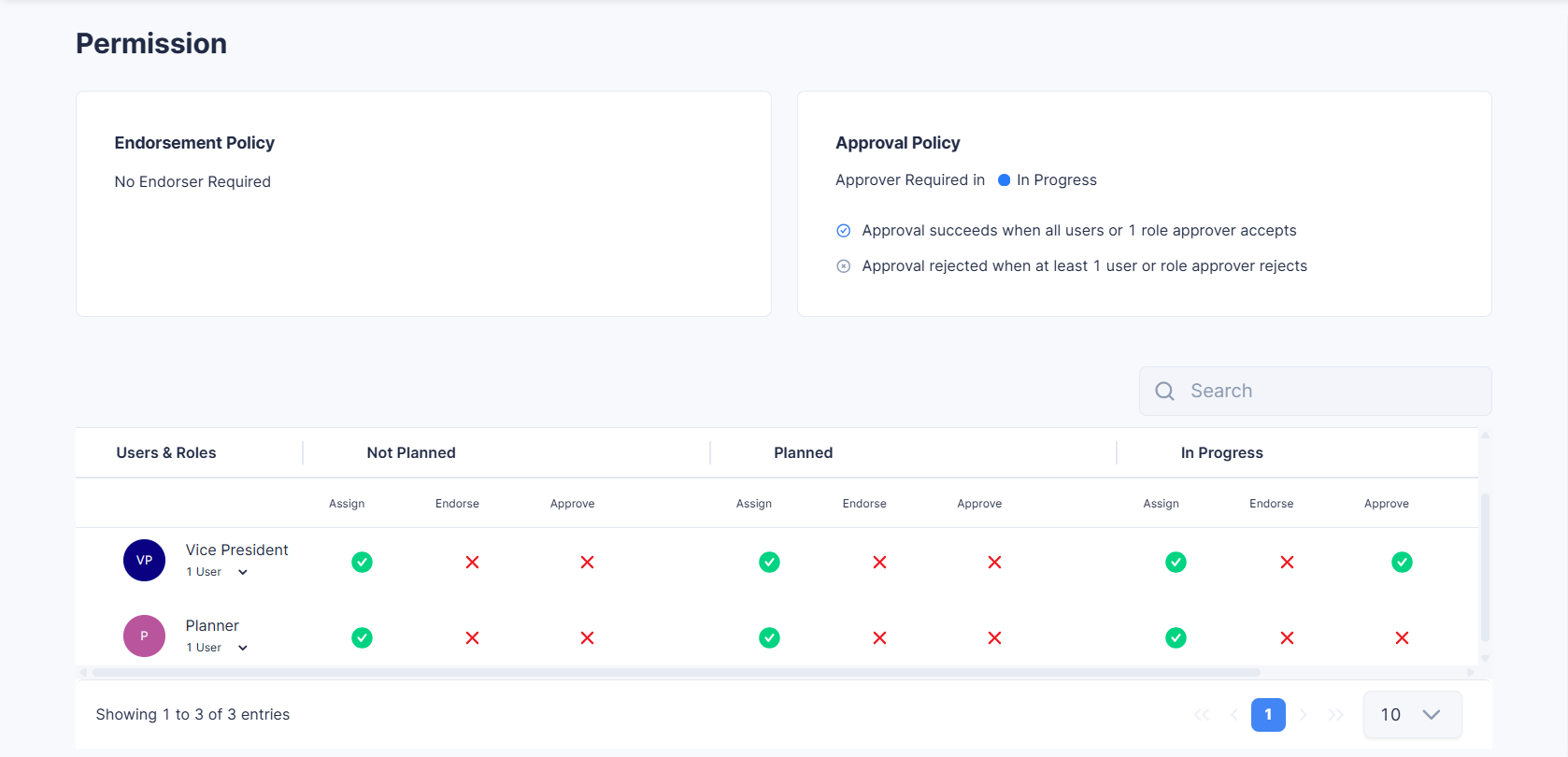
An activity's Permissions set, for each role or user and each status:
- Assign: can be assigned, and can work on the activity's content.
- Endorse: must endorse (or can reject) the move to the next status.
- Approve: must approve (or can reject) the move to the next status.
The Endorsement Policy and Approval Policy decide in which statuses an endorser or approver is required. An endorsement or approval succeeds when all named users, or one person in a named role, accept; it's rejected when at least one rejects.
¶ Where activity permissions come from
| How the activity was added | Its starting permissions |
|---|---|
| From the roadmap when the project was created | The activity's permissions on the roadmap (Roadmap Activities tab) |
| Added to the project later | The template's Permission Inheritance settings on the roadmap, if set |
| Either | Can then be changed on the activity's Permissions tab |
See Designing Roadmaps and Managing Activities.
¶ API Keys
An API key lets another system use Planally through the Developer API. A key always acts as one user, so it can see and change only what that user can, at every level above. Its own permission, Read or Read & write, can narrow that further. Keys are created and managed by the Planally team on request. See Authentication.
¶ Who Can See a Private Project?
| Person | Can see it? | Can change it? |
|---|---|---|
| Superadmin or Administrator | Yes | Yes |
| Workflow Admin | Yes | Yes |
| Workflow User | Yes | No (unless they hold a Key Role in it) |
| Project team member | Yes | Depending on their project role |
| Anyone else | No | No |
¶ Best Practices
- Grant the lowest level that works. Prefer a project role over Workflow Admin, and Workflow User over adding someone to every project.
- Review Workflow Users when a workflow holds sensitive projects: they can see private projects.
- Assign Key Roles early so every project has someone who can manage its team.
- Set Permission Inheritance so activities added later still need the right sign-off.
- Issue API keys to users whose access matches the integration, never to an administrator by default.