¶ Managing Activities
¶ Overview
The Activity page is your central hub for managing activities within your project. It brings together all the tools you need to track progress, collaborate with your team, and maintain compliance.
¶ Key Features
- Expand/Contract View: Toggle between full-page and windowed view.
- Copy Link: Share the activity page directly with team members.
- Activity Status: Update status and manage endorsements/approvals.
- Activity Form: View and update structured activity data.
- Attachments: Upload, update, and delete files related to the activity.
- Discussions: Collaborate by posting comments regarding the activity.
- Related Work: Link other activities and define dependencies.
- Permissions: Control who can edit, endorse, or approve.
- Audit Trail: Review the history of changes in the activity.
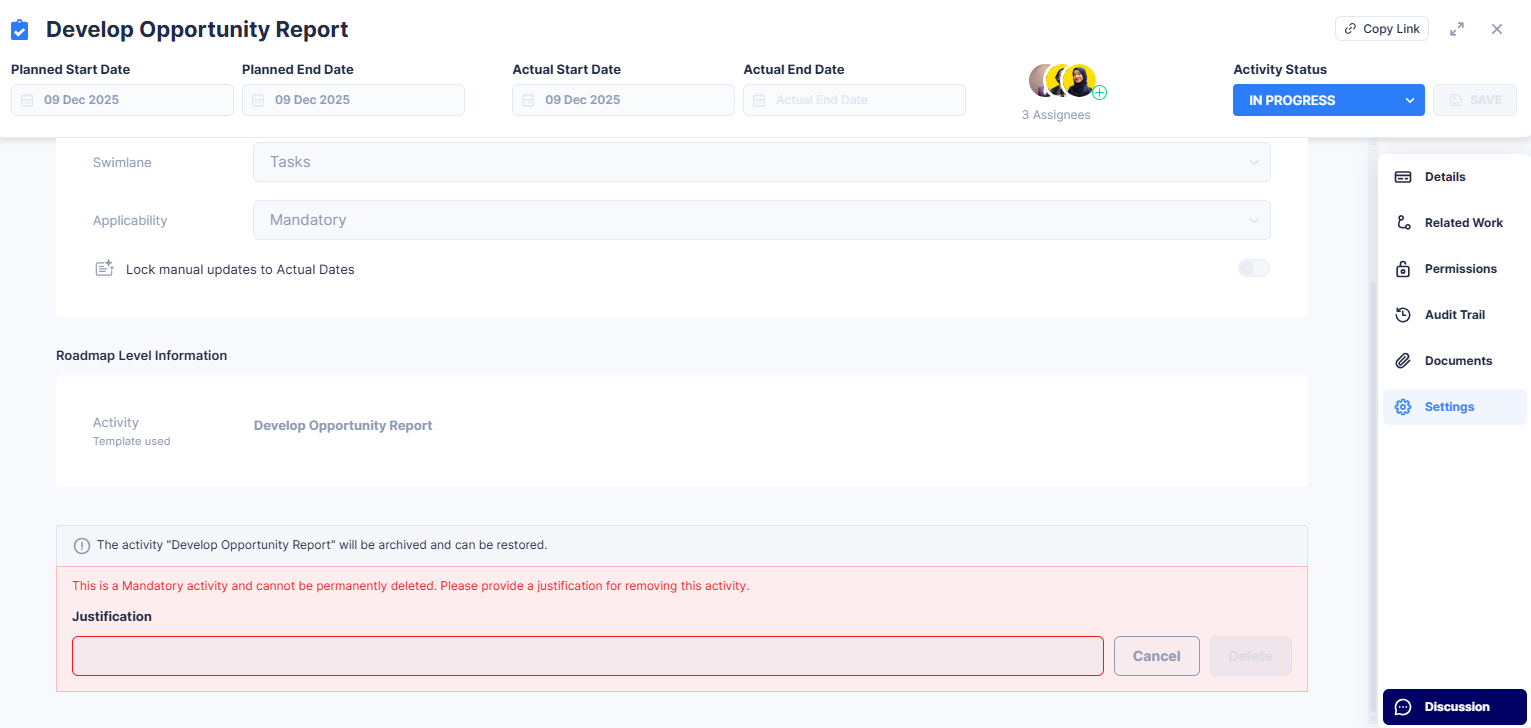
- Settings: Manage advanced activity options such as lock manual updates to Actual Dates, swimlane, and activity deletion.
- Delete Activity: Activity removal follows applicability rules. Mandatory activity cannot be permenantly deleted. Instead it will be waived, and requires justification. Applicable activity can be permenantly deleted and do not require justification.
¶ Activity Status
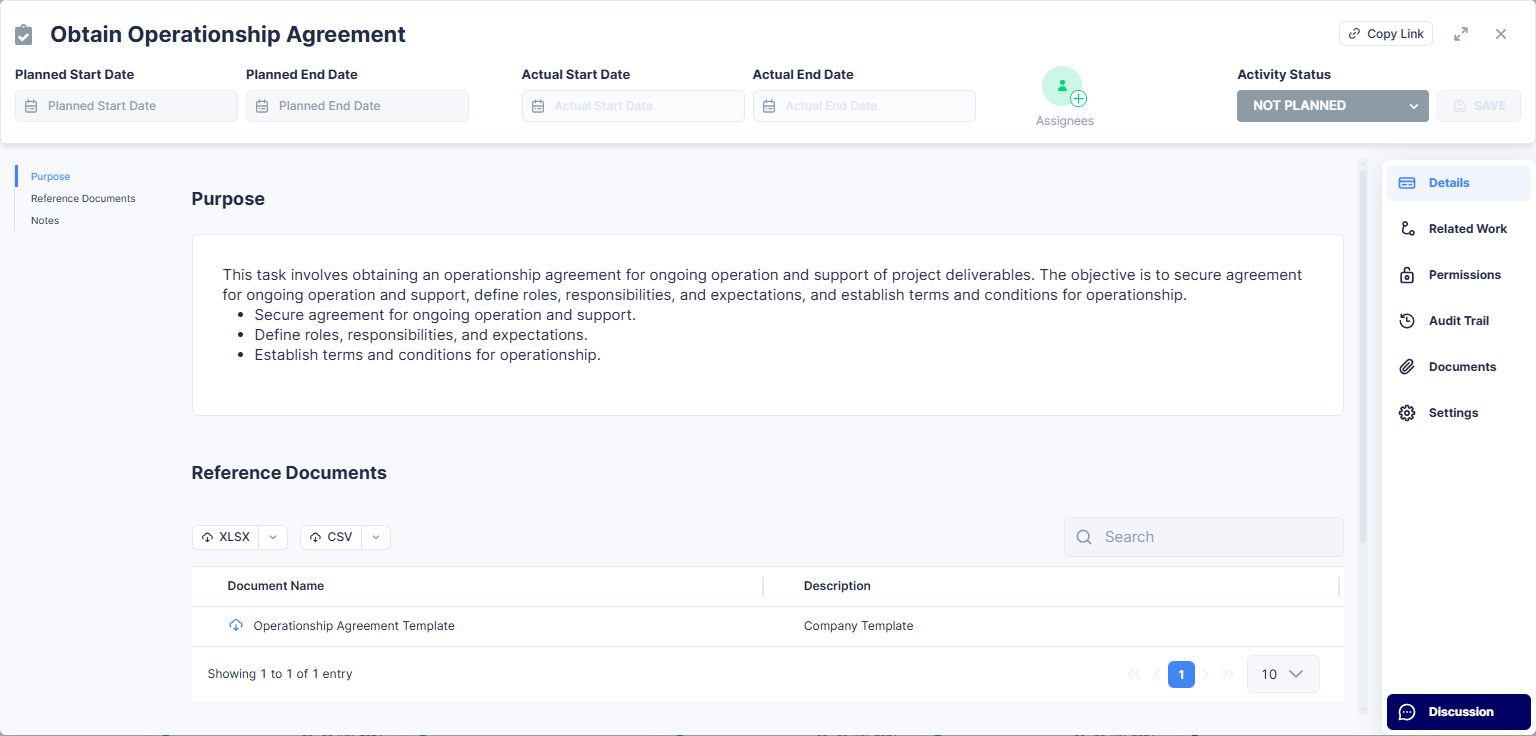
Activity Status determines whether your activity is Not Planned, Planned, In Progress, or Completed, and indicates if it is late based on the dates provided. This drives activity tracking and can trigger notifications to assigned users.
¶ Status Details
- Not Planned: Activity has not been scheduled yet.
- Planned: Requires Planned Start Date, Planned End Date, and Assignee.
- In Progress: Requires Actual Start Date.
- Completed: Requires Actual End Date.
Endorsements and approvals may be required at any stage based on permissions.
¶ Understanding Late Status
"Late" is applied automatically. Planally determines it by comparing an activity's planned dates against its progress. Late is a fixed fact about the activity, so it does not change with how you choose to view the board.
| Status | Meaning | Late when |
|---|---|---|
| Not Planned | No dates set yet | Never. Work with no plan can't be late |
| Planned | Scheduled and assigned, not started | Past its planned start date and not yet started → Planned – Late |
| In Progress | Started (actual start recorded), not finished | Past its planned end date and not yet complete → In Progress – Late |
| Completed | Finished (actual end recorded) | Finished after its planned end date → Completed – Late |
Notifications and the Reminders page only surface late activities that still need action such as Planned – Late and In Progress – Late. Completed – Late is different; it records that an activity finished behind schedule, but since the work is already done, no further action is required.
The Actual Dates toggle in Phase Gate View only changes which dates are shown on the cards (planned vs. actual). It does not change whether an activity is late or alter the late count—late is late regardless of the toggle.
¶ Steps
- Open the Activity Details page.
- Click the Status dropdown and select the new status.
- Ensure required dates and assignees are set.
- If endorsements or approvals are required, click Endorse, Approve, or Reject (enter justification if rejecting), then Save.
- Save the status change once all requirements are met.
Important Notes:
- Endorsers/approvers receive notifications when their action is required.
- Rejection justifications will be recorded in the Discussion section.
- Always click Save after any endorsement or approval action.
¶ Activity Form
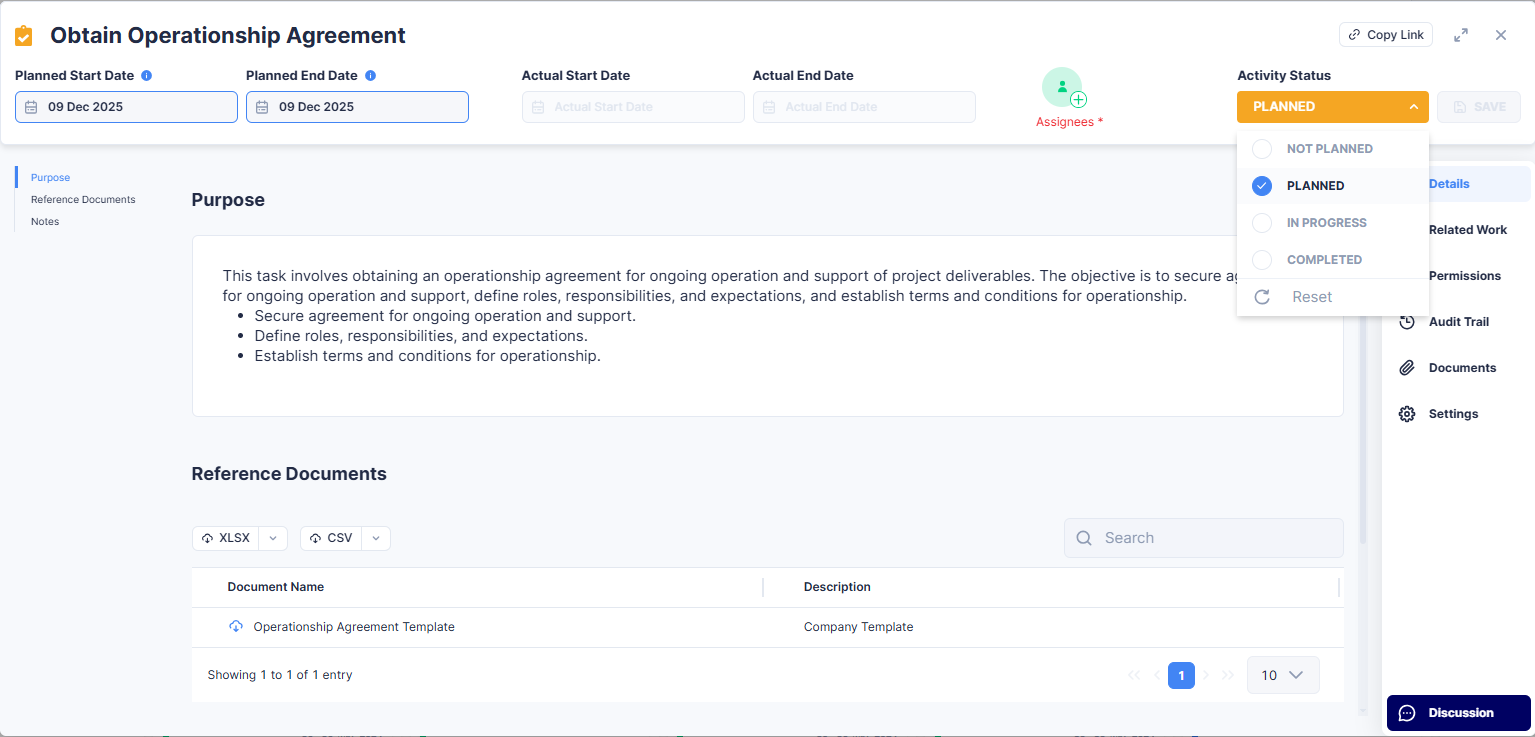
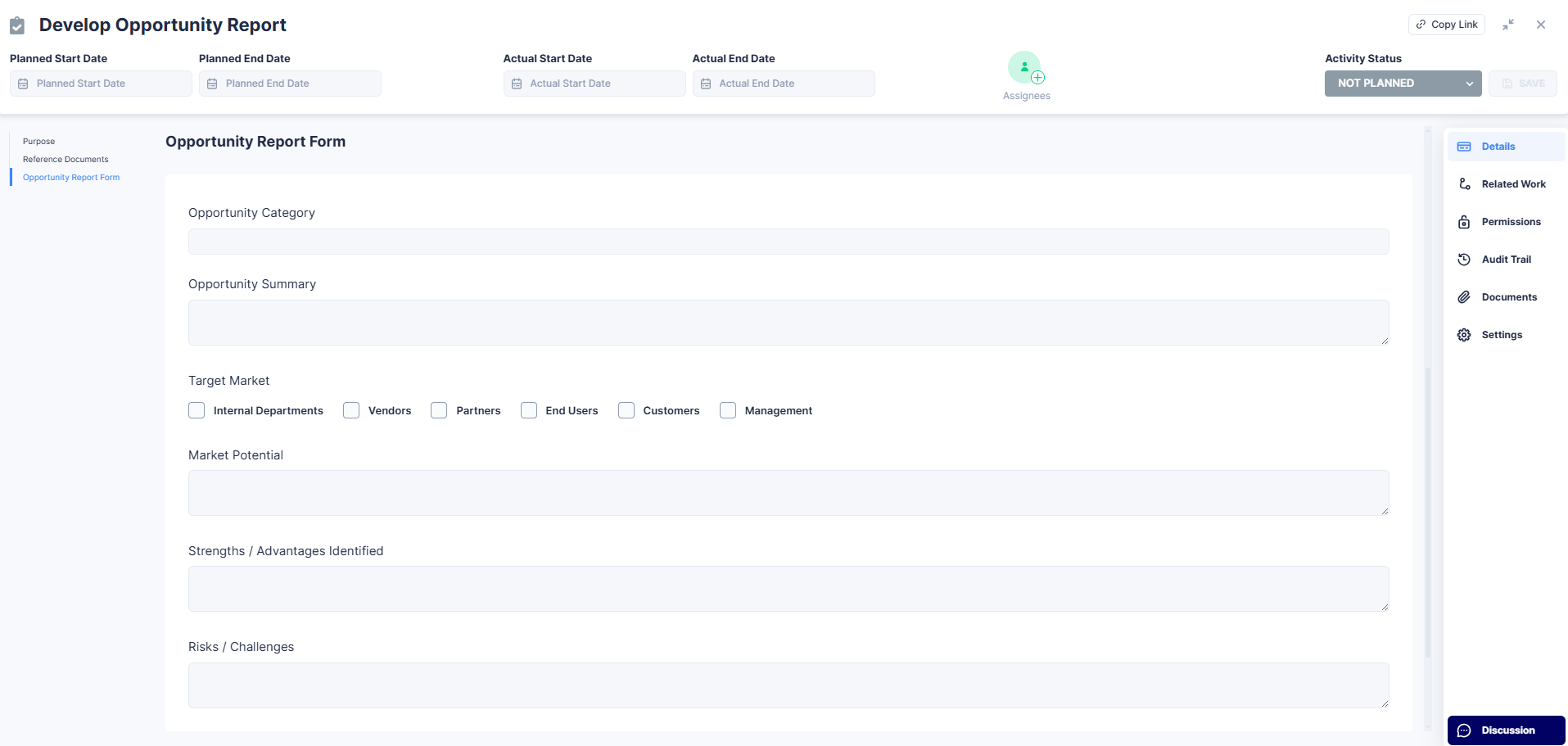
The Activity Form is the structured input area where users provide the details required to complete the activity. It is generated based on activity template defined in the workflow.
¶ Components
- Purpose (if applicable): States the activity's objective.
- Reference Documents (if applicable): Lists supporting guidelines or files linked to the activity.
- Activity Form: Displays all fields defined by the template.
¶ Editable Tables
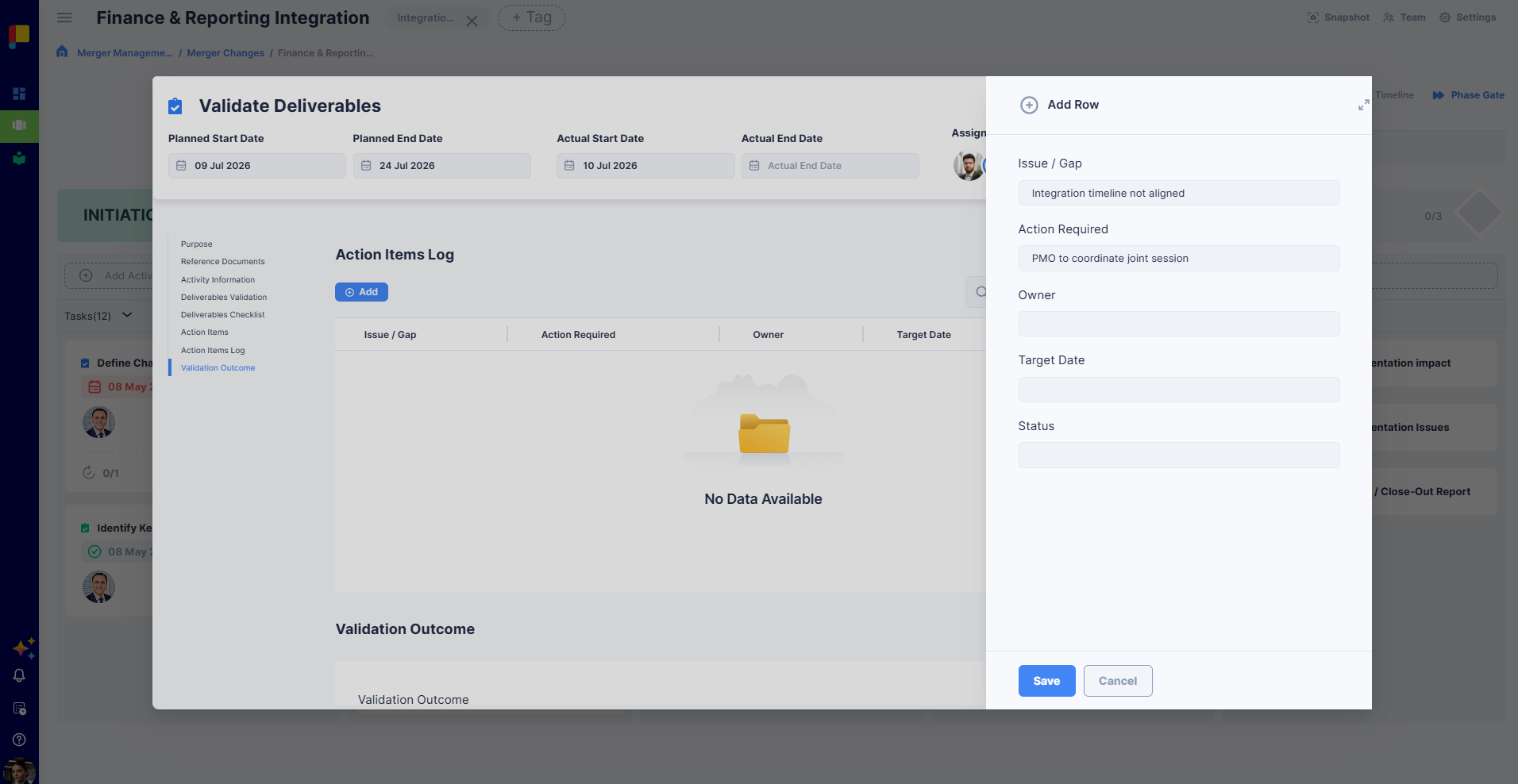
Some activity forms include an editable table—a structured table inside the form where you add and edit rows directly. Each row is a set of fields (a form within a form), so a single activity can capture line items such as deliverables, risks, or register entries without leaving the page. Columns can include text, number, date, select, dropdown, attachment, and user-selector fields, depending on how the template was built.
- Add a row to enter a new record, then fill in each field.
- Edit an existing row, then save.
- Delete a row you no longer need.
¶ Attachments
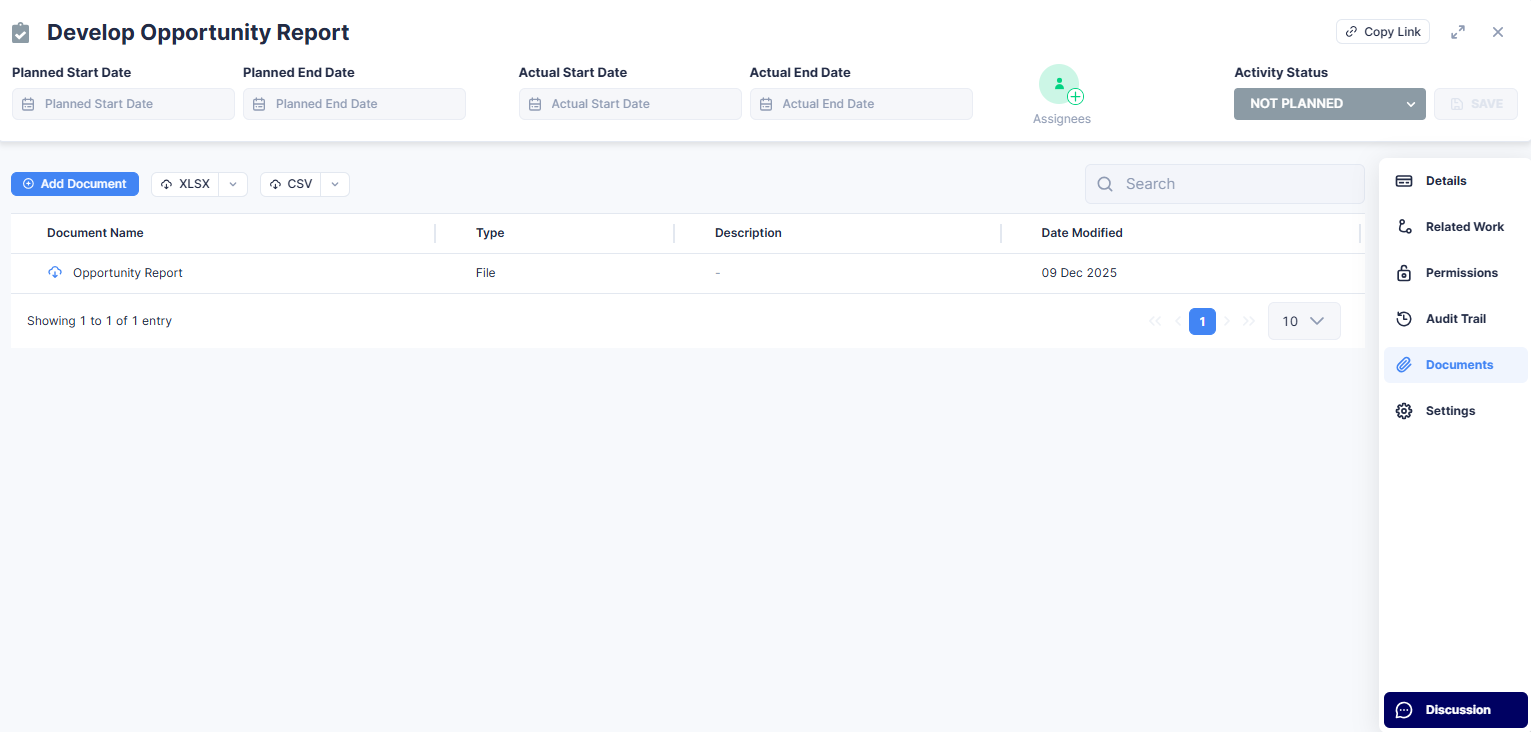
(Formerly labelled "Documents" on the activity page.) Attach relevant files to keep everything in one place.
¶ Steps to Add Attachments
- Scroll to the Attachments section.
- Click Upload, drag & drop files, or add a link to add supporting evidence.
- Fill in attachment details (e.g. name, description).
- Click Save to attach.
¶ Steps to Update or Delete Attachments
- Select the attachment from the list.
- Click Update to edit details.
- To delete, click Delete after opening the attachment settings, then confirm.
¶ Discussions
Discussions are specific to the activity and provide a dedicated space for collaboration.
Tip: Rejection justifications for endorsements/approvals appear here for transparency.
¶ Steps
- Open the Discussion section.
- Type your comment.
- Press Enter or click Post to share.
¶ Related Work
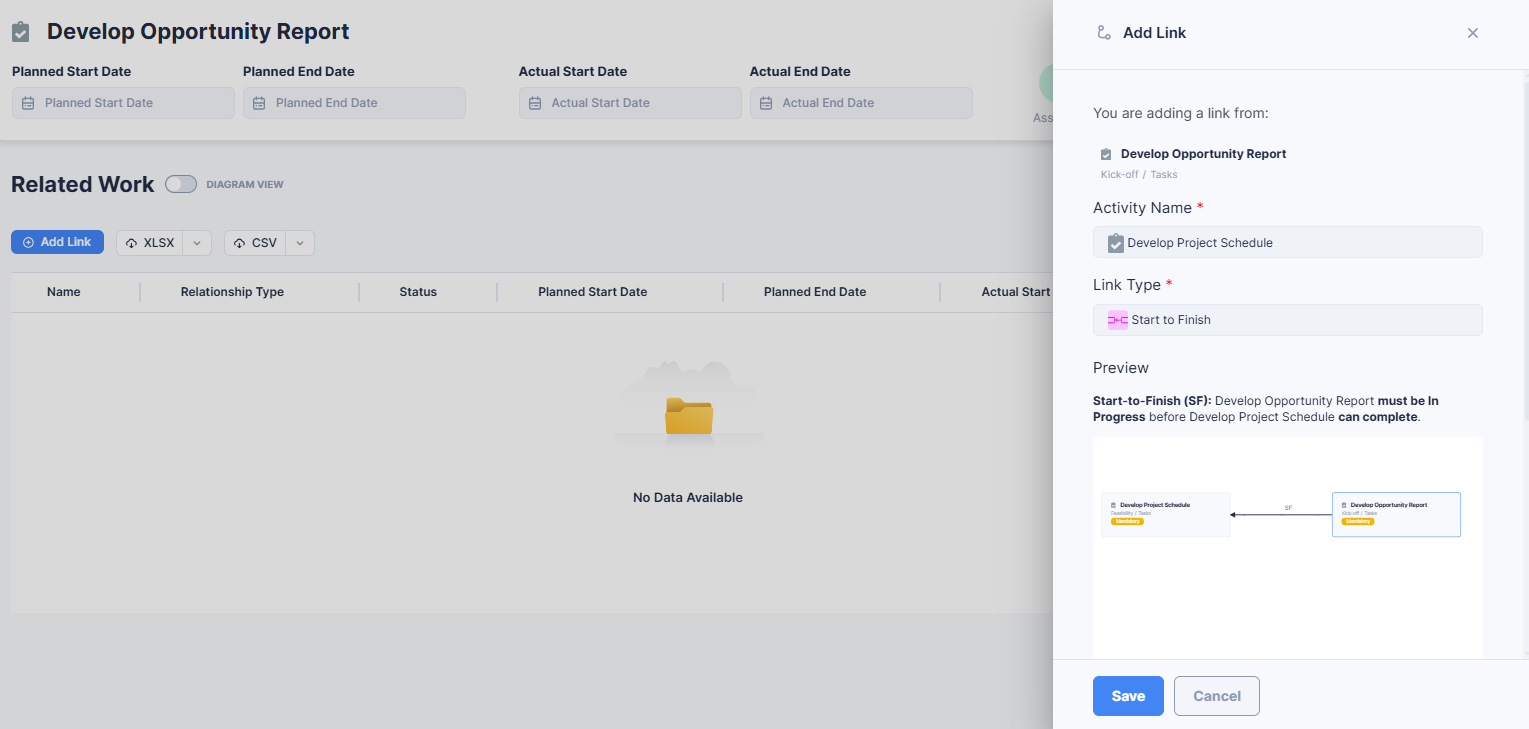
Link related activities or documents to maintain context and dependencies.
¶ Relationship Types
- Related: A general link between two activities for reference.
- Start-to-Start (SS): The linked activity cannot start until the current one starts.
- Finish-to-Start (FS): The linked activity cannot start until the current one finishes.
- Start-to-Finish (SF): The linked activity cannot finish until the current one starts.
- Finish-to-Finish (FF): The linked activity cannot finish until the current one finishes.
¶ Steps
- Scroll to Related Work.
- Click Add Link.
- Select the related activity.
- Choose the relationship type and click Save.
¶ Permissions
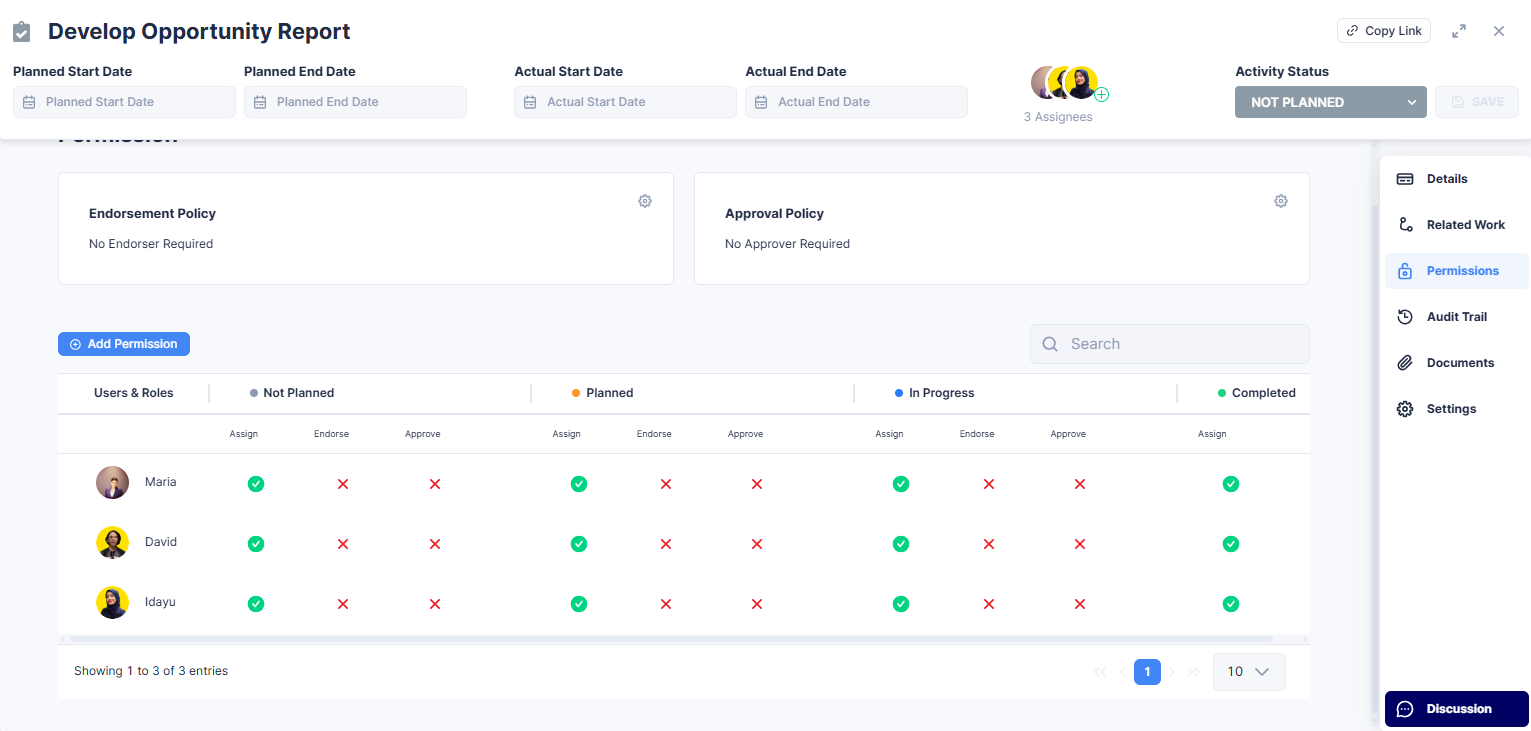
Permissions define who is assigned to the activity and the endorsement/approval policies for each status step.
¶ Steps to Configure Permissions
- Open the Permissions section.
- Click Add Permission.
- Select a user or role.
- Configure endorsement and approval requirements for each step: Not Planned → Planned, Planned → In Progress, In Progress → Completed.
- Click Save.
Important Notes:
- Roles are based on your workflow team roles.
- The Endorsement and Approval Policy indicates where approvals are required.
- Requirements trigger notifications for assigned users.
¶ Audit Trail
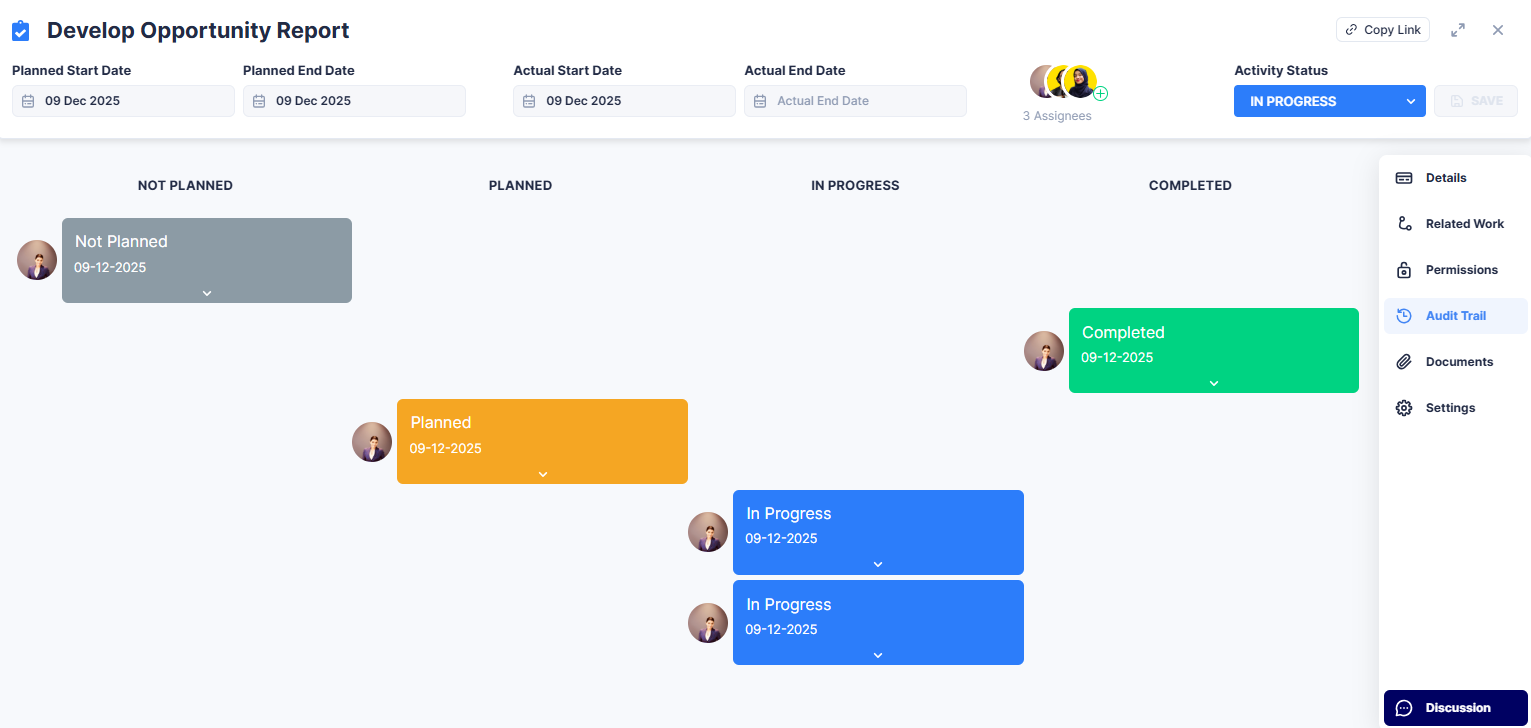
Track all changes to the activity, including status updates, discussions, and data modifications.
¶ Steps
- Click any Status box to see what data changed.
- Click the Discussions icon to see the relevant comments.
¶ Delete Activity
Deleting an activity removes it from your project.
¶ Steps
- Scroll to the Settings section.
- Click Delete Activity.
- Provide justification if required.
- Confirm deletion.
¶ Rules
- Mandatory: Cannot be permanently deleted; requires justification.
- Applicable: Can be deleted with a simple "DELETE".
- Prerequisite: Cannot be deleted at all.
¶ Best Practices
- Update activity status promptly to keep dashboards accurate.
- Attach all relevant documents for compliance and easy reference.
- Use the discussion panel for collaboration and transparency.
- Configure permissions early to avoid delays in endorsements and approvals.
- Review the audit trail regularly to maintain governance.