¶ Registers
Key Note: In Planally, "projects" can mean a contract, tender, research initiative, product, audit, or any other entity defined by your workflow. The steps below apply universally, but examples here use projects for clarity.
A register is a structured list of records kept inside a project: risks, issues, assets, invoices, lessons learned, or anything else your team needs to log again and again. Every record is filled in using the same form, so the information is captured the same way every time and can be searched, filtered, and exported.
Registers sit alongside your project's workflow. Your admin decides which registers each workflow has; you add and update the records.
¶ Why This Matters
Registers help you:
- Capture repeatable information consistently, with the same fields and rules for every record.
- Keep records with the project they belong to, instead of in separate spreadsheets.
- Find what you need fast with search, sorting, filters, and export.
- Let the form do the maths: registers can use formulas, so ratings and totals are calculated for you.
¶ Key Features
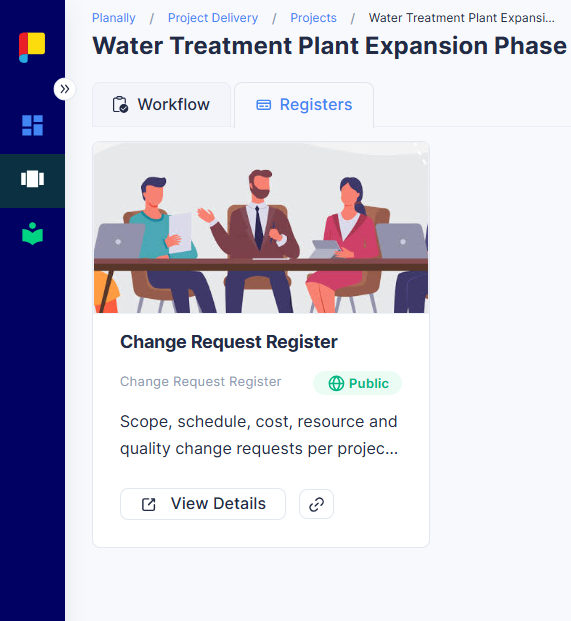
- Register cards: Every register in the project, with its name, form, and access level.
- Records table: Every record in a register, with an automatic ID.
- Add, update, and delete records: Depending on the register's access level.
- Tables inside records: Add line items such as mitigation actions or invoice lines.
- Search, sort, filter, and export: Export to XLSX or CSV.
- Copy Link: Share a direct link to a register.
¶ Open a Register
- Open your project.
- Click the Registers tab, next to Workflow, at the top of the project.
- Find the register you need. Each card shows its image, name, the form it uses, its access level, and its description.
- Click View Details (or anywhere on the card) to open the register.
To share a register with a colleague, click the link icon on its card. The link is copied so you can paste it anywhere.
¶ Access levels
The badge on each card tells you what you can do:
| Badge | What you can do |
|---|---|
| Public | Anyone with access to the project can view, add, update, and delete records. |
| Read Only | Anyone with access to the project can view records. Nobody can add, update, or delete them. |
| Private | Only Key Role users on the project, Workflow Admins, and administrators can see and manage it. |
Registers your admin is still setting up are hidden from projects until they're ready.
¶ View Records
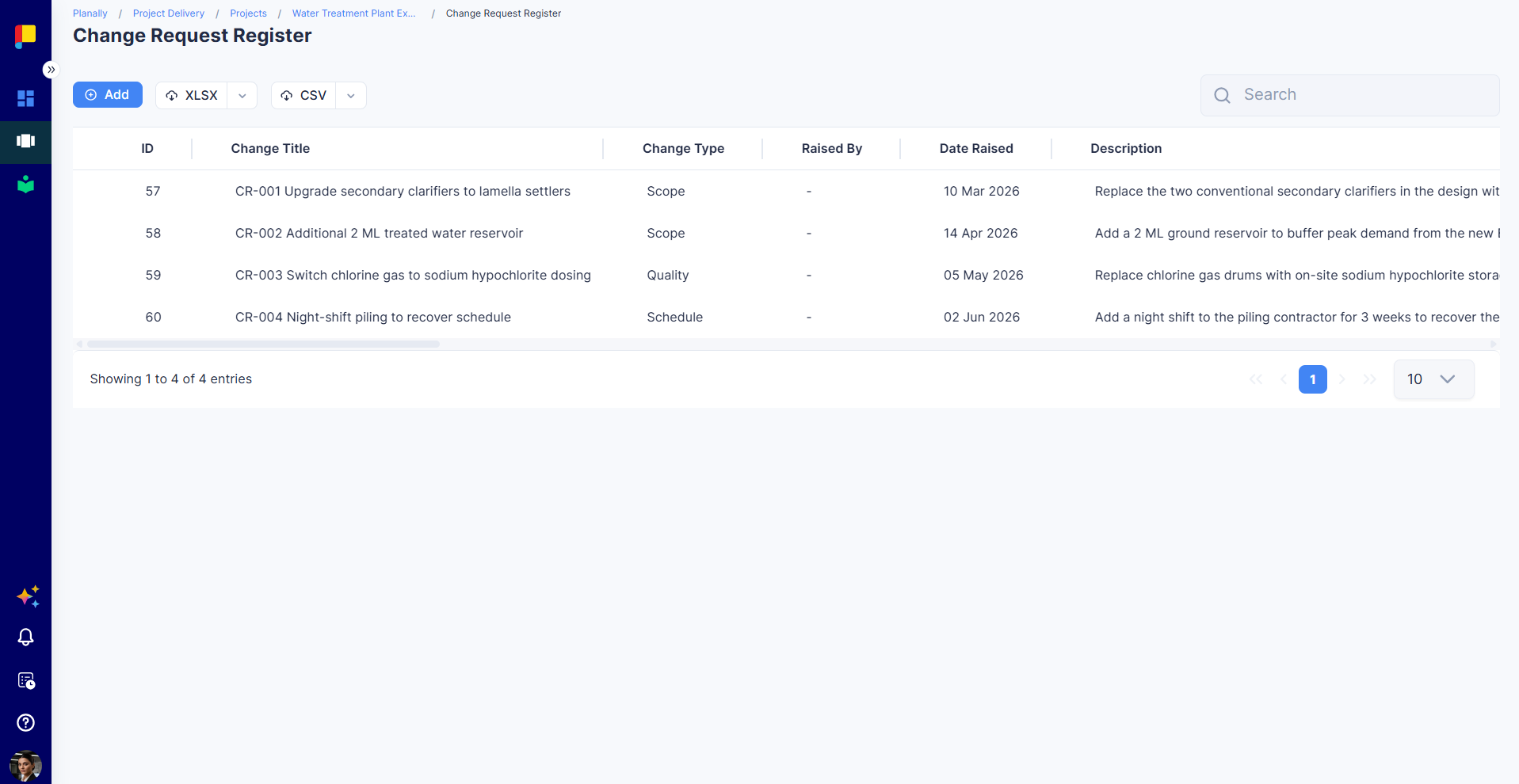
The register opens as a table with one row per record. The first column is the record's ID, which Planally assigns automatically. The other columns are the fields from the register's form.
- Search with the search box to find records instantly.
- Sort by clicking a column header.
- Filter to narrow the records shown.
- Export with XLSX or CSV: choose Export All Data or Export Filtered Data.
If a record contains a table (for example, a list of mitigation actions), the column shows how many rows it has.
¶ Add a Record
¶ Steps
- Open the register.
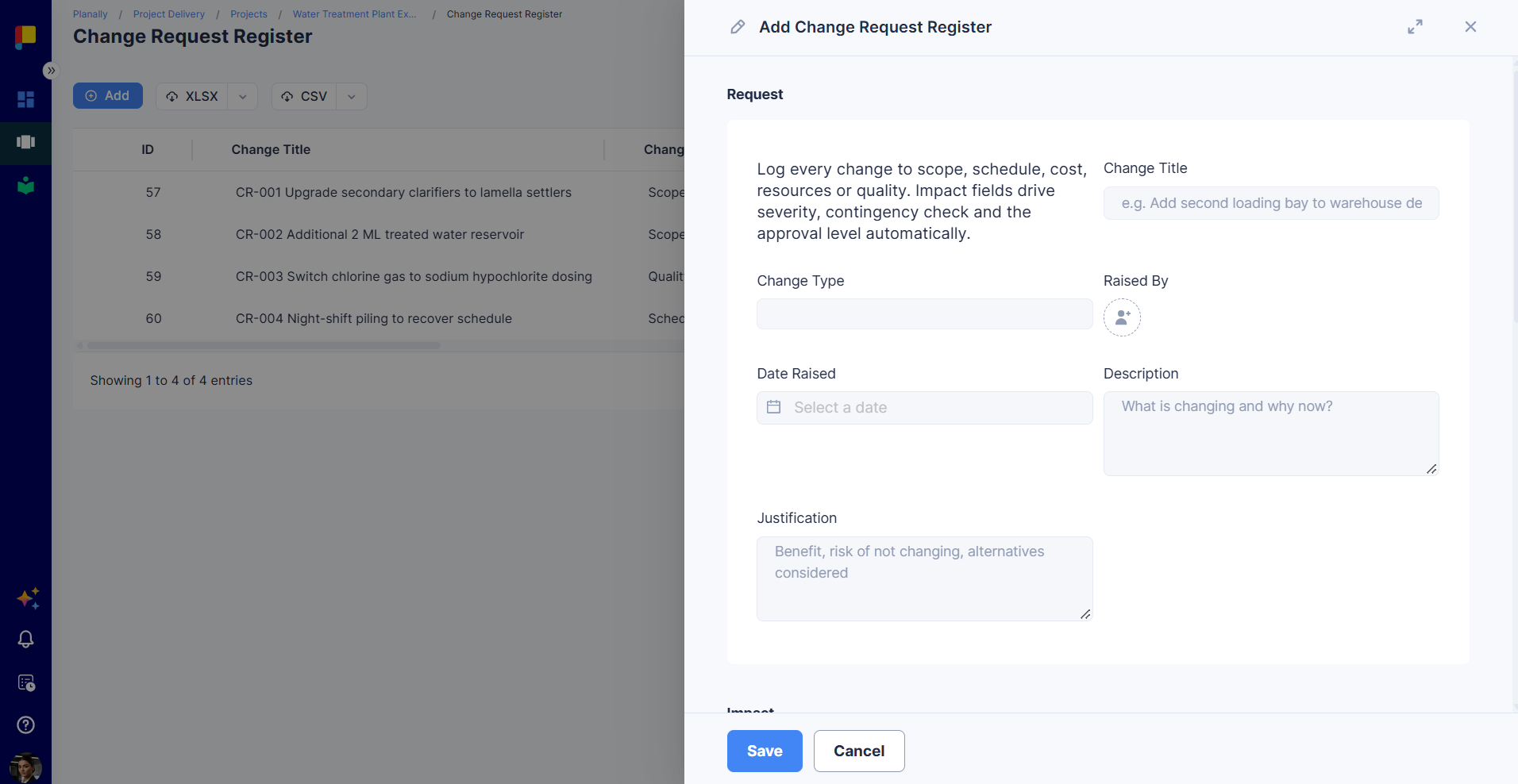
- Click Add. A side panel opens with the register's form.
- Fill in the fields. Calculated fields (formulas) fill themselves in as you type.
- Click Save.
The new record appears in the table with its ID.
¶ Add rows to a table inside a record
If the form has a table (for example, Mitigation Actions), you add its rows after the record is saved:
- Save the record first. The table is read-only while you're adding a new record.
- Select the record and click Update.
- In the table, click Add, fill in the row, and click Save.
- Repeat for each row, then click Save on the record.
¶ Update or Delete Records
¶ Update a record
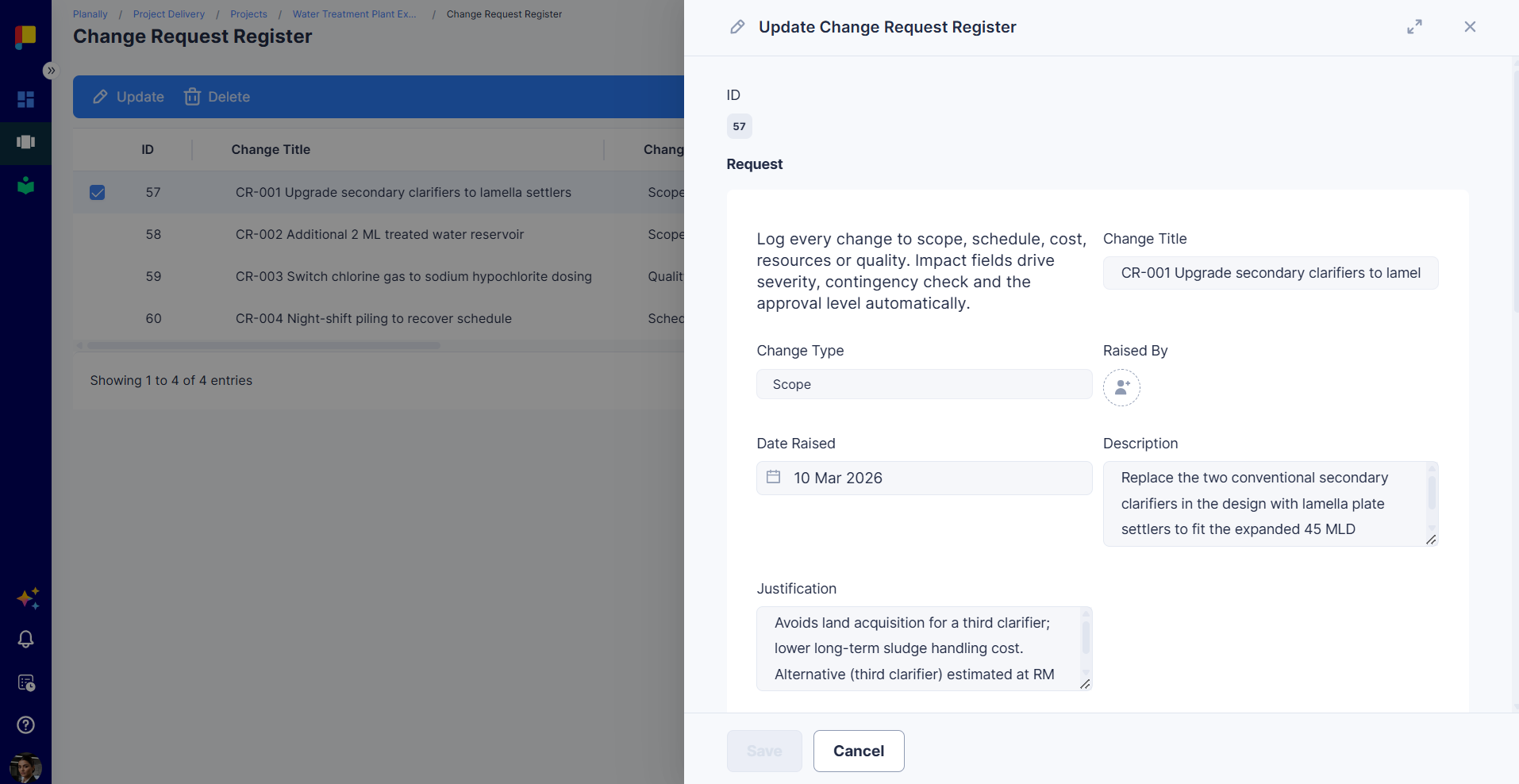
- Select the record in the table.
- Click Update. The side panel opens with the record's ID at the top.
- Change the fields you need and click Save.
¶ Delete records
- Select one or more records.
- Click Delete.
- Confirm. If you're deleting several records, tick the box confirming you want to delete them all permanently.
Deleted records can't be recovered.
Read Only registers: you'll see View instead of Add, Update, and Delete. Open a record to read it.
¶ Best Practices
- Give every record enough detail to stand on its own. Someone reading the register later shouldn't need to ask you what it means.
- Use the search and filters before adding a record, to avoid duplicates.
- Keep records up to date. A register is only useful if it reflects today.
- Export filtered data for reviews and reports instead of copying rows by hand.
- Ask your admin if you need a new field or register. Registers are set up per workflow so every project captures the same information.