¶ Workflow Views
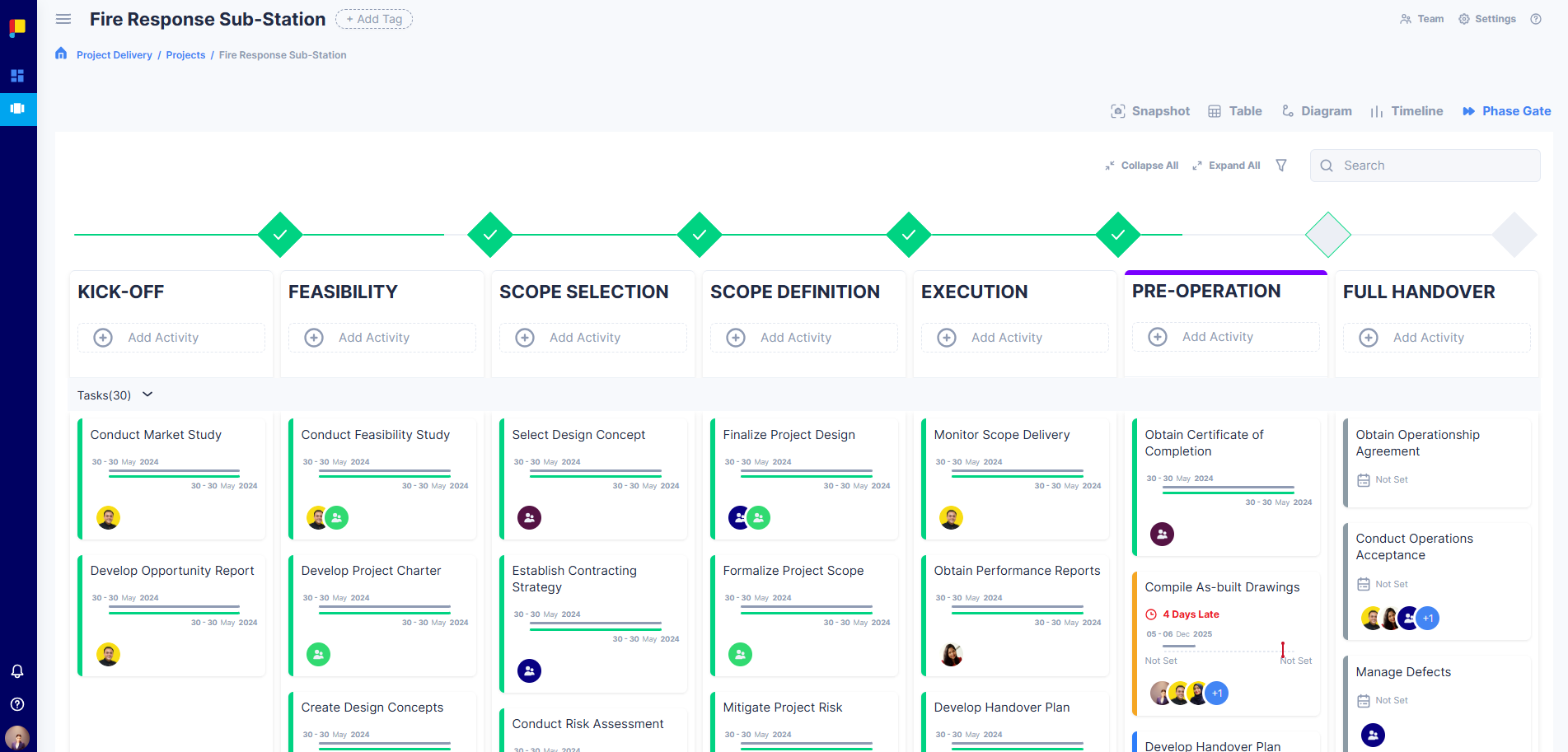
Once you've created a project within a workflow, Planally automatically organises all activities, roles, and governance rules based on the roadmap you selected. The Workflow Views feature helps you navigate and manage these activities. With four complementary views, you can visualise progress, track deadlines, and make decisions in one place.
¶ Why This Matters
Workflow Views allow you to:
- Visualise progress across phases and activities.
- Track deadlines and dependencies with ease.
- Navigate automated tasks and governance checkpoints in sequence.
- Choose the view that fits your working style.
¶ 1. Phase Gate View
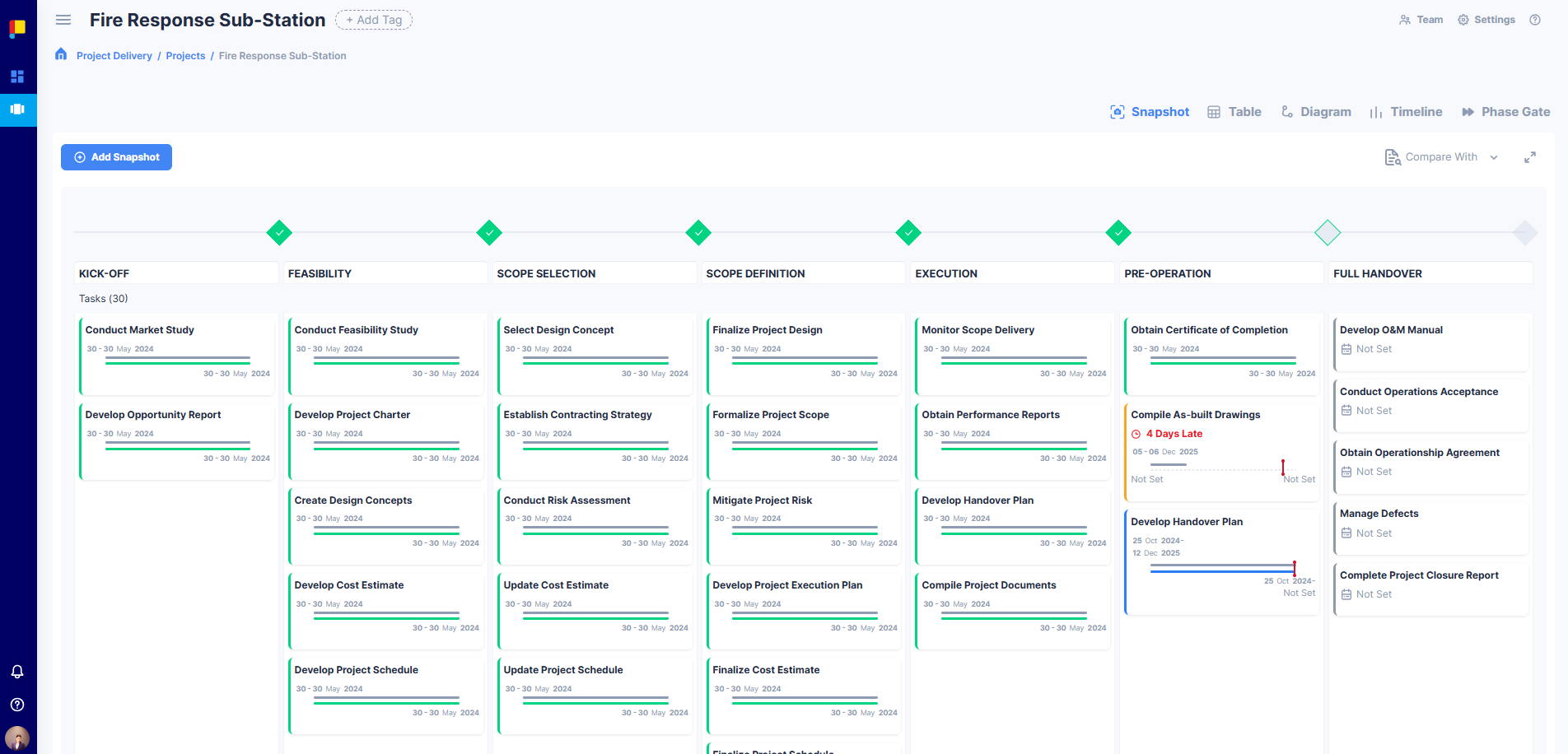
Phase Gate View presents your workflow as a governed sequence of phases with gate checkpoints. Activities appear as cards within each phase, showing status, dates, late indicators, and assignees.
¶ How to Use This View
- Add Activity within the relevant phase using the phase toolbar; new activities inherit roadmap rules and permissions.
- Collapse/Expand All to focus on a single phase or scan the whole workflow.
- Search to locate an activity card by keyword.
- Read status badges (Not Planned, Planned, In Progress, Completed, Late) and due indicators to prioritise.
- Drag and drop to reorder within a phase or move cards across phases (subject to governance and permissions).
- Open an Activity to update status, forms, documents, and review the audit trail.
- Use gates to verify readiness and proceed, stop, or go back a phase.
- Toggle Actual Dates to switch the dates shown on cards between planned and actual. This only changes which dates are displayed—it does not change late status or the late count. For how late is determined, see Understanding Late Status.
¶ 2. Table View
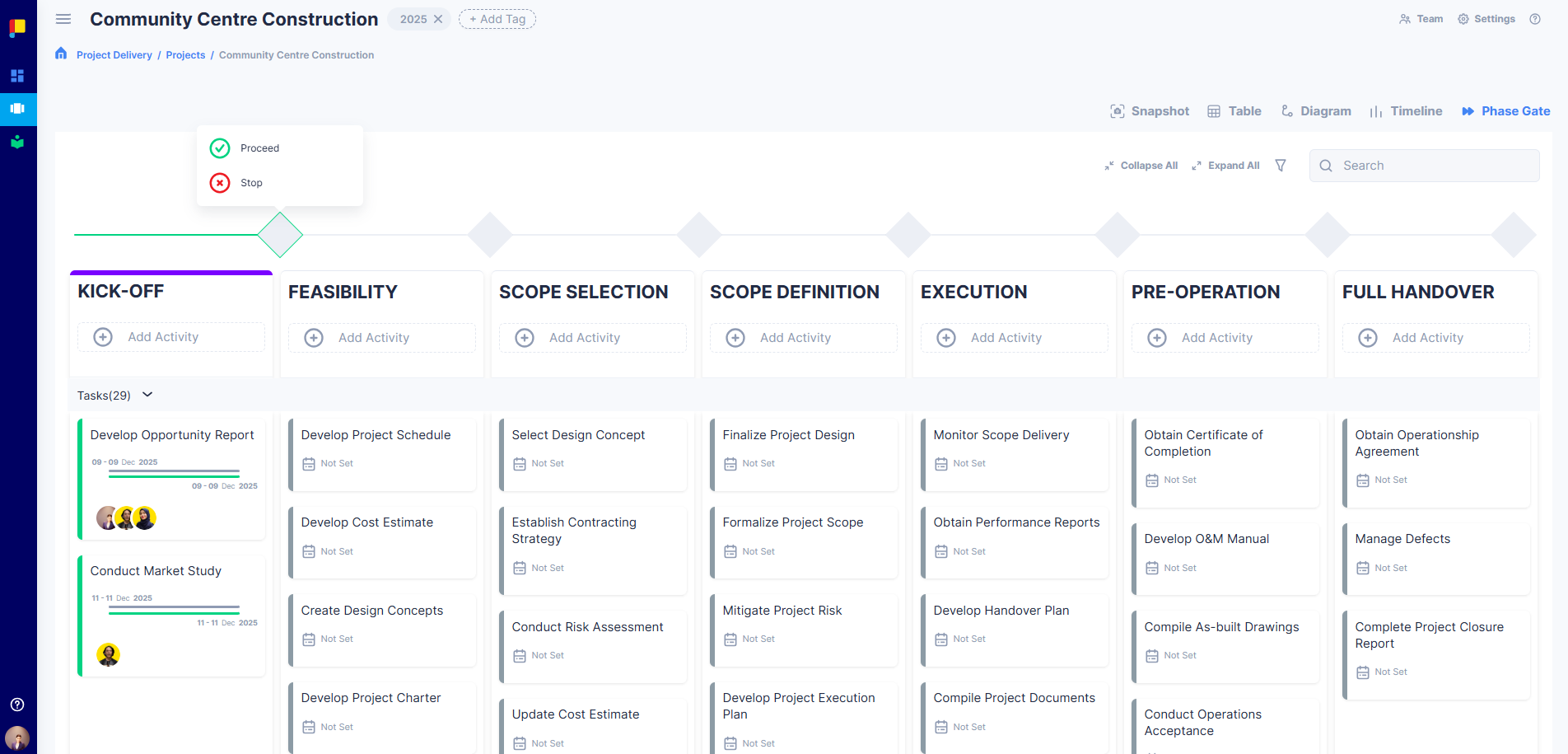
Table View offers a spreadsheet-style perspective across all activities—ideal for managing, filtering, and searching in one place. Columns include Phase, Activity Name, Applicability, Swimlane, Status, Assignees, and Planned/Actual dates.
¶ How to Use This View
- Sort and filter columns by clicking headers.
- Search to filter rows instantly.
- Export to XLSX or CSV for offline reporting.
- Add Activity from the toolbar.
- Open an activity by clicking its name.
- Use pagination and page-size controls (10, 25, 50).
¶ 3. Timeline View
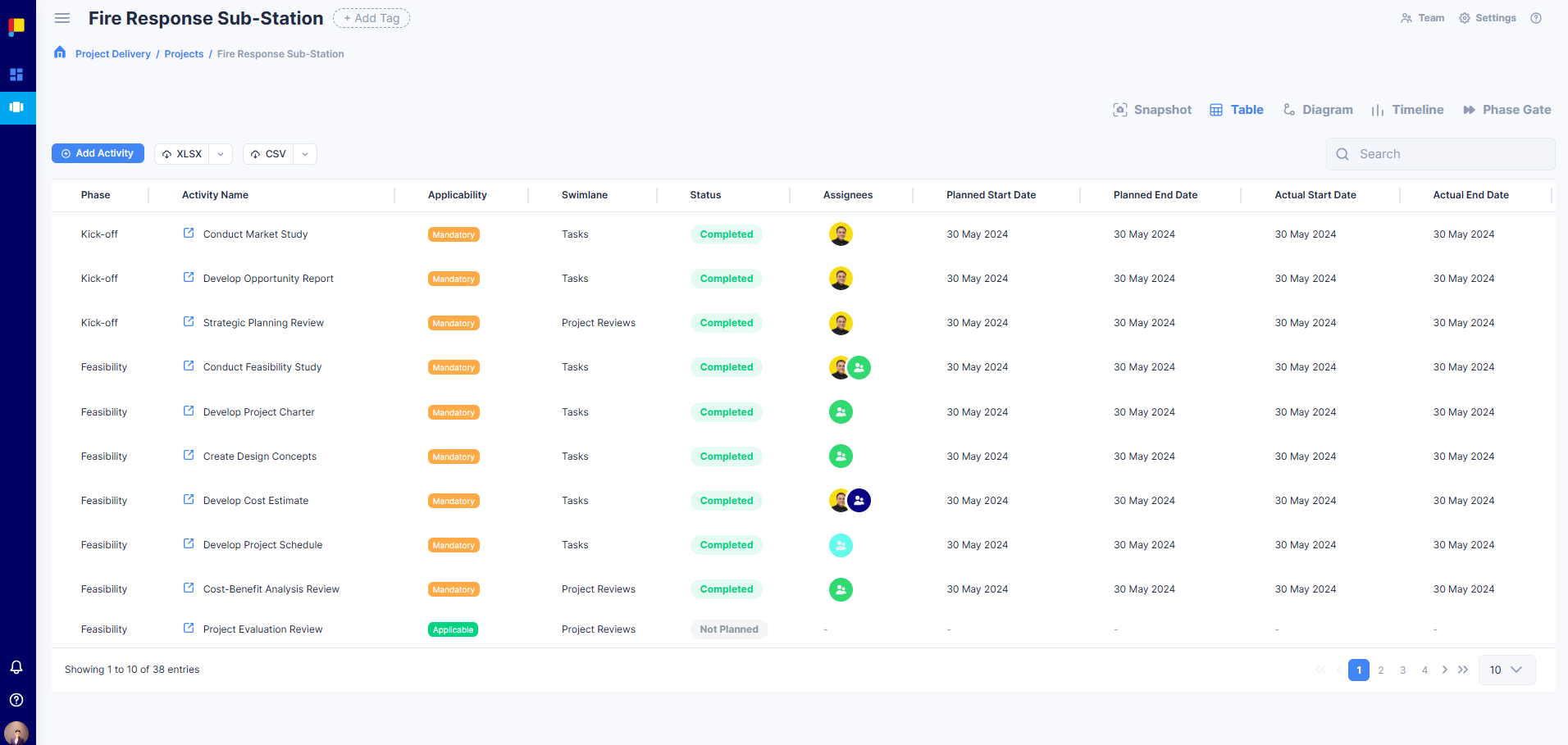
Timeline View provides a clear visual of all activities over time, helping you track activities by swimlane and ensure work stays on schedule.
¶ How to Use This View
- Zoom in/out to adjust the timeline scale (months or years).
- Activities display within swimlanes, showing counts by status within a timeframe.
- Click an Activity Status in a swimlane to open the list of activities and their details.
¶ 4. Diagram View
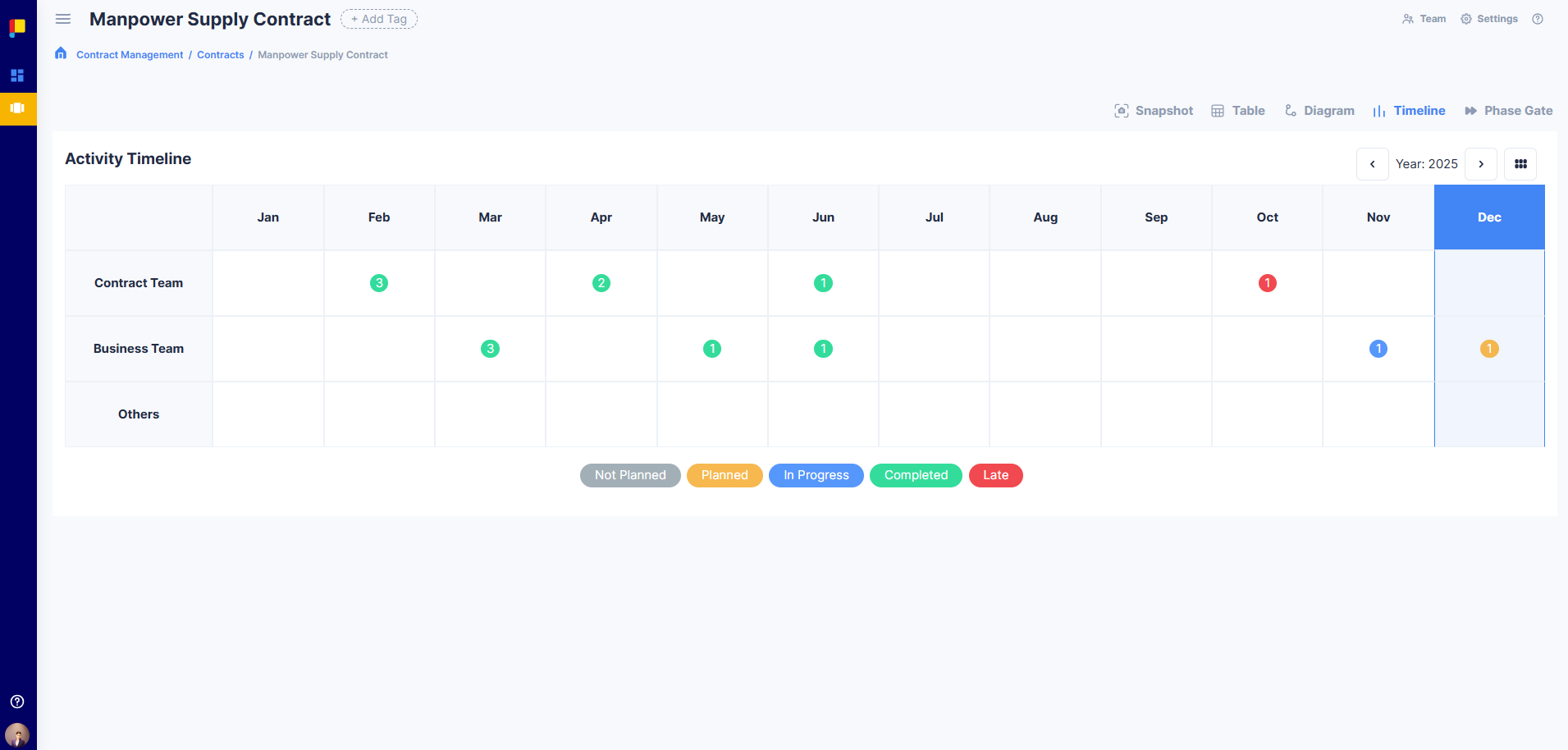
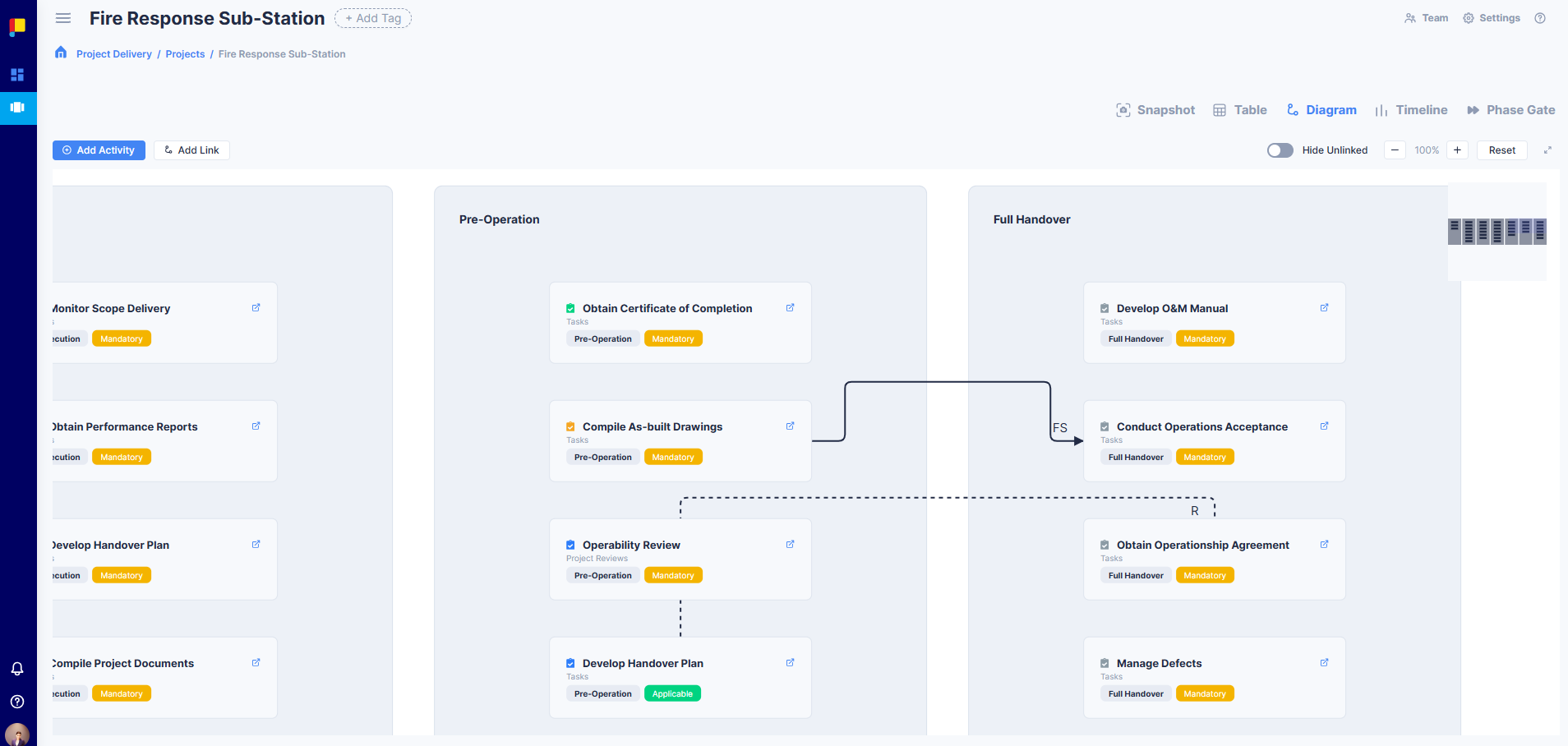
Diagram View provides a visual representation of your workflow phases and activities in a structured diagram—ideal for understanding relationships, dependencies, and governance flow at a glance.
¶ How to Use This View
- Zoom and pan to navigate easily.
- View dependencies: Related (R), Start-to-Start (SS), Start-to-Finish (SF), Finish-to-Start (FS), and Finish-to-Finish (FF).
- Click activities to open details, update fields, and manage documents.
¶ Snapshot
Snapshot is not one of the four switchable views above — it's a separate feature, accessed via the Snapshot button in the top-right toolbar, alongside Team and Settings. It lets you compare the state of your workflow at different points in time. Snapshots are taken automatically on key changes (Status, Phase, Roadmap) and can also be taken ad-hoc.
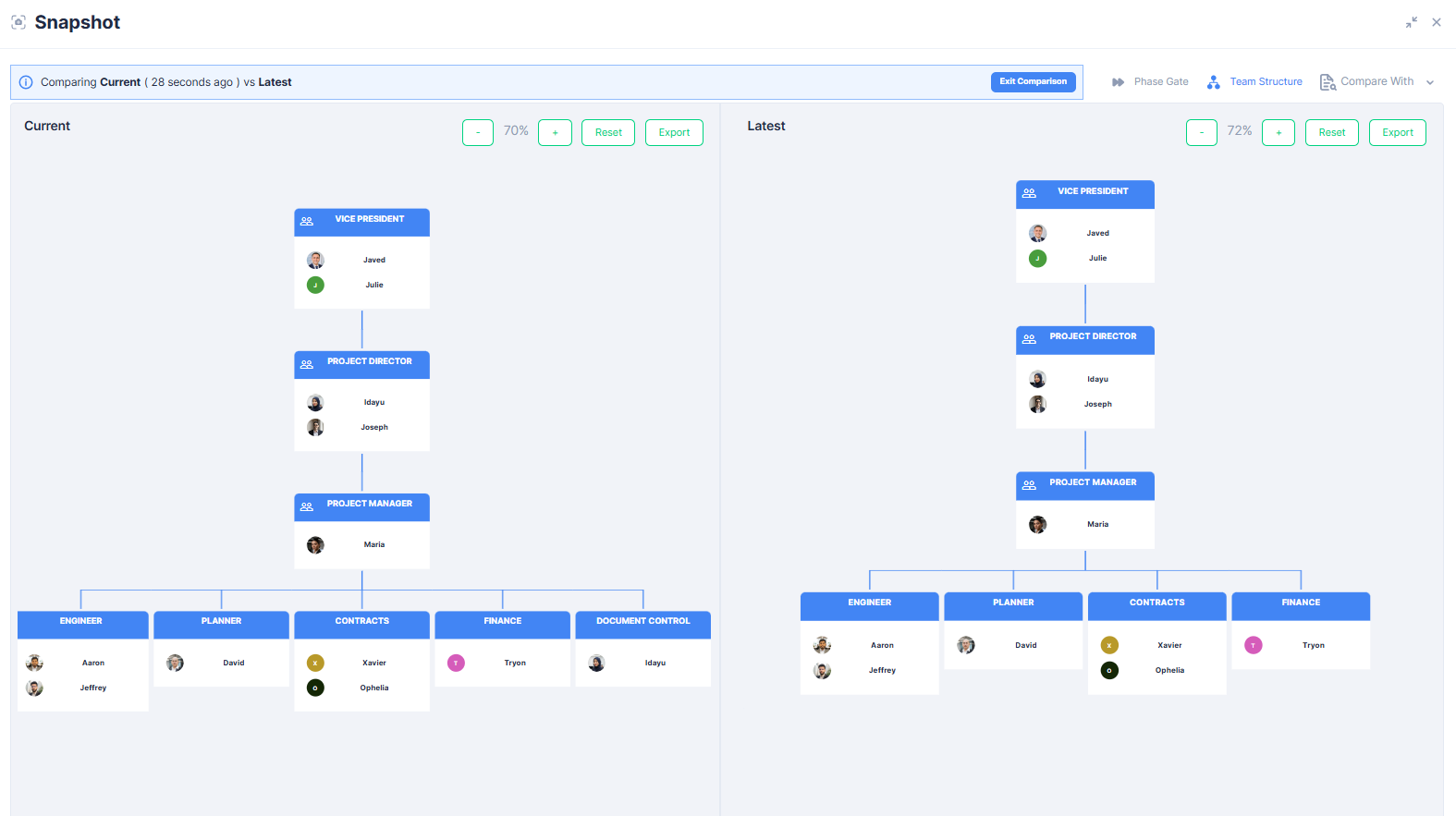
Snapshot now also tracks Team structure over time, so you can see how roles and assignments on a project have changed, not just activity and phase progress.
¶ How to Use Snapshot
- Click Snapshot in the top-right toolbar to open it.
- Create a snapshot to record the current state, including team structure.
- Compare snapshots to track progress and team changes over time.
¶ Best Practices
- Choose the view that matches your task: Phase Gate for governance, Timeline for scheduling, Table for reviews.
- Use Snapshot periodically for historical analysis, including tracking team structure changes.
- Regularly update activity status to keep views accurate.
- Use filters and search to quickly locate tasks.