¶ Documents
The Documents area is your single place to find every document connected to your workflow. It brings together admin-curated references, the documents uploaded to your projects, and the reference materials attached to activities — so you spend less time hunting through folders, emails, and individual activities.
Note: This area is called Documents, and the admin-curated collection inside it is called Virtual Library.
Open it from Documents in your workflow's side menu (All Folders), or from the Documents link on the workflow's card on the home page. The landing page shows three folders:
| Folder | What's inside |
|---|---|
| Virtual Library | Documents and links curated by your admin. |
| Projects | Documents uploaded to each project, organised one folder per project. |
| Reference Documents | Every reference document attached to activities across the workflow. |
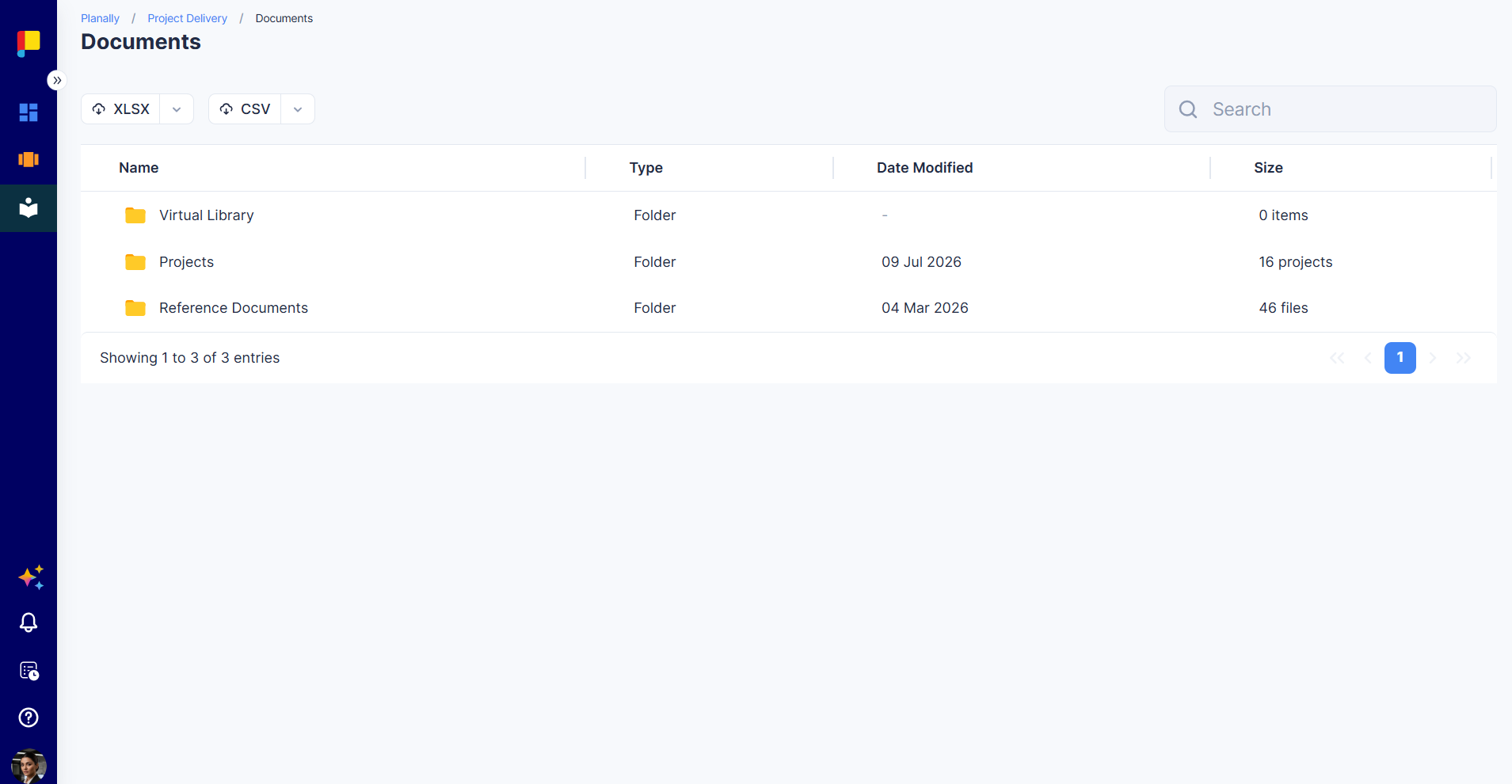
Each row shows Name, Description, Type, Date Modified, and Size (item or file counts). Use the Search bar at the top right to find documents anywhere in the area.
¶ Why This Matters
- Centralise resources so every document is one click away.
- Find documents in context — curated, project, or activity-linked.
- Accelerate decisions by surfacing the right information without leaving Planally.
¶ 1. Virtual Library
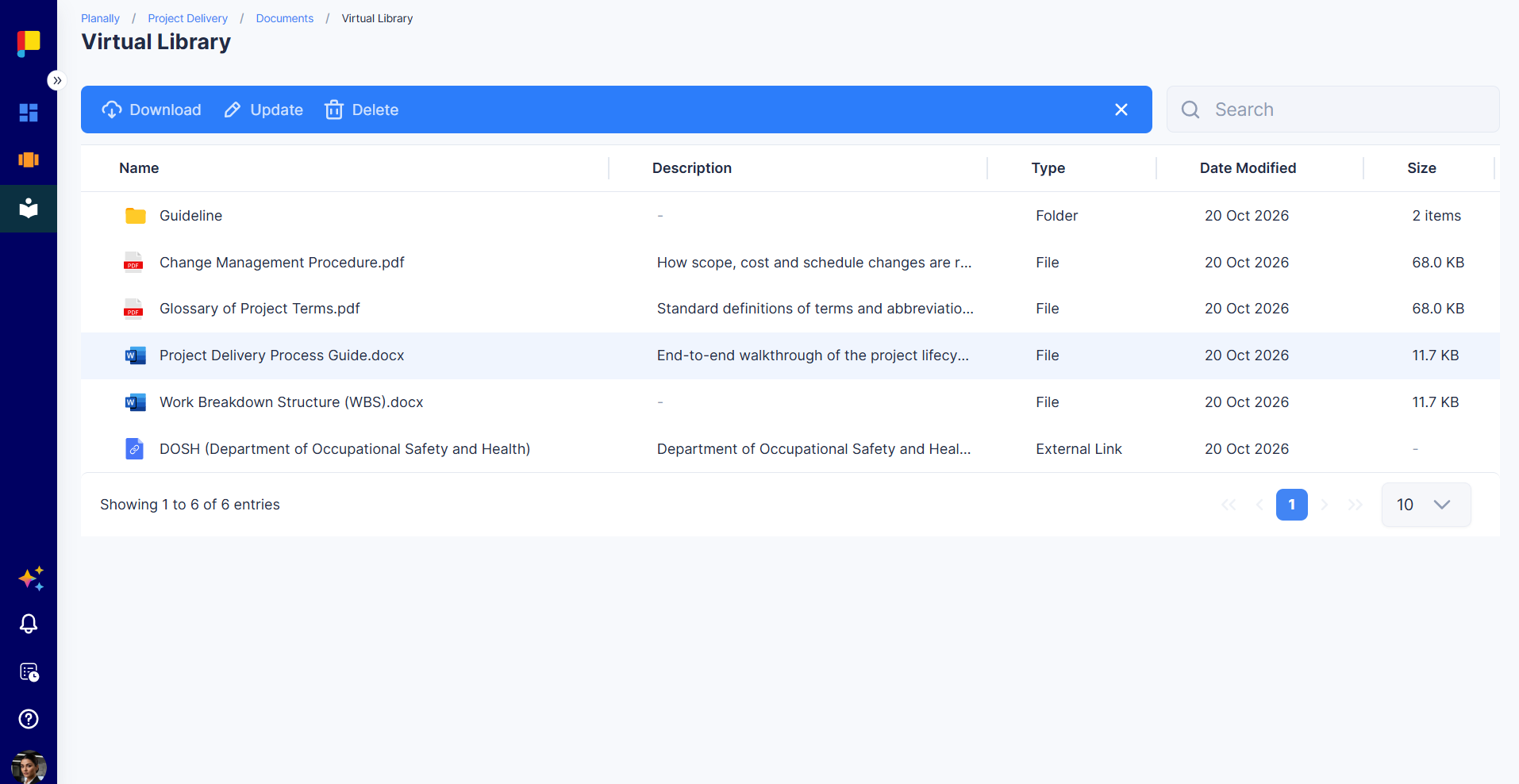
The Virtual Library is a curated collection of documents and links, organised into folders. It is the home for standards, templates, guidelines, and policies that support your workflow.
¶ Adding Content
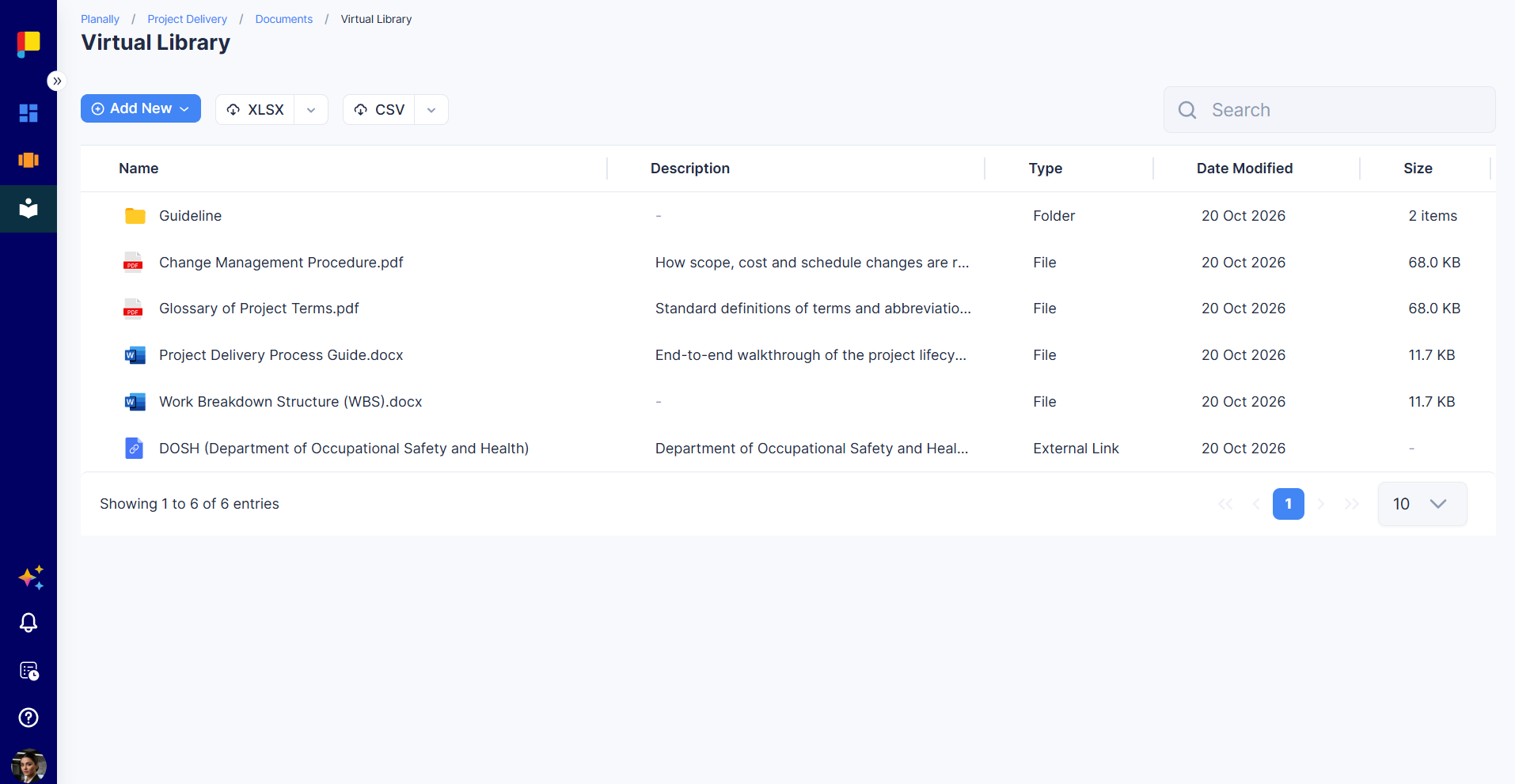
Adding, uploading, and deleting items in the Virtual Library is restricted to Admins and Workflow Admins. Use the Add New button; the options are:
- Create New Folder — enter a Folder Name (required) and an optional Description, then click Save.
- Upload File — upload a document from your computer, with an optional Description.
- Add External Link — enter a Name and URL (both required) and an optional Description, then click Save. Links appear with the type External Link.
Descriptions (up to 500 characters) appear in the list, so people know what each item is before they open it.
¶ Managing Items
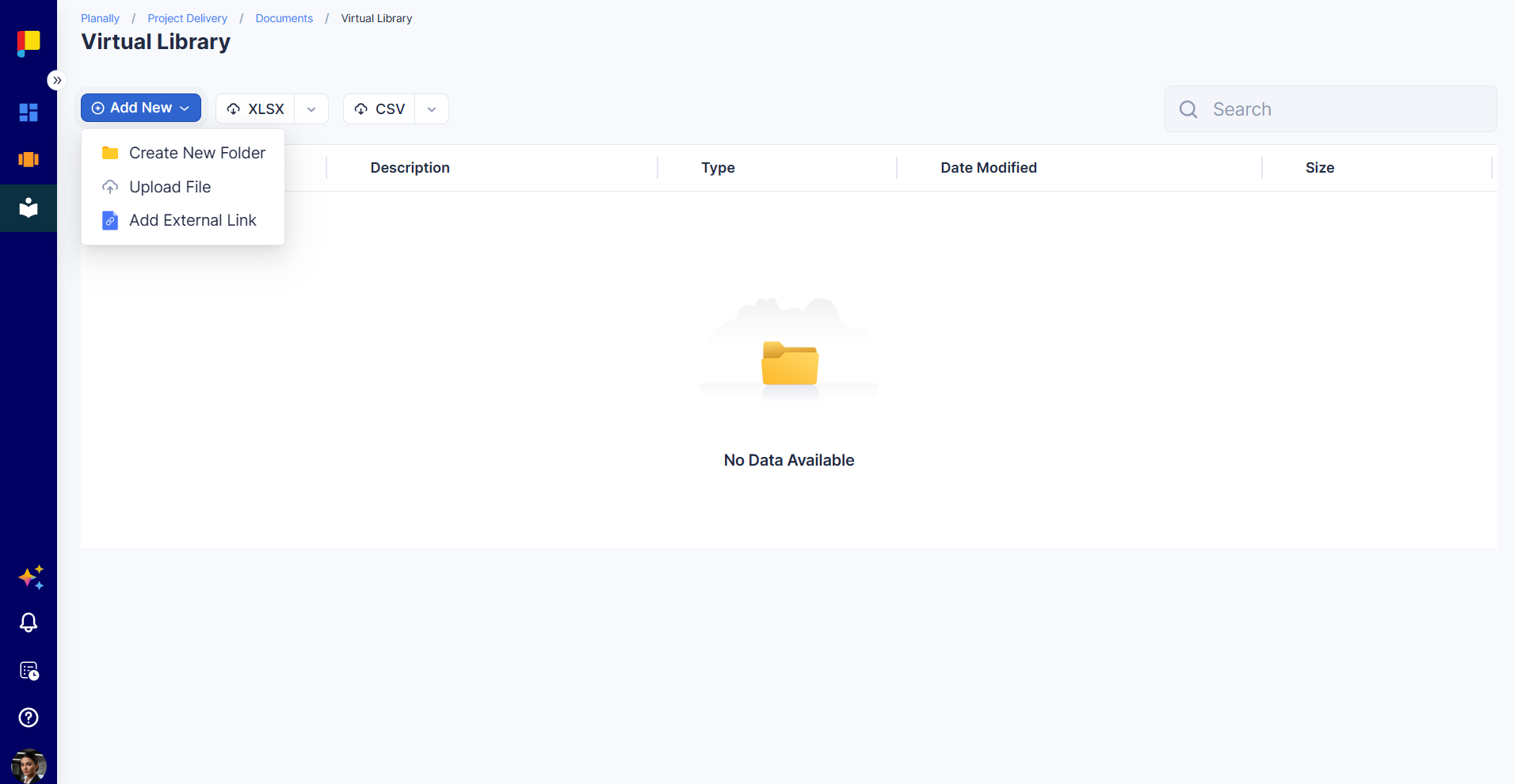
Select an item to reveal the action bar:
- Files & folders: Preview, Download, Update (name and description), Delete.
- External links: Open, Update, Delete.
Folders can be nested, and each item shows its Type, Date Modified, and Size.
¶ 2. Projects
The Projects folder (shown with your workflow's term) contains one sub-folder per project in the workflow. Open a project folder to see all documents uploaded to that project's activities.
Inside a project, documents are listed with: Name, Activity (the activity the file is attached to), Category, Type, Size, and Description.
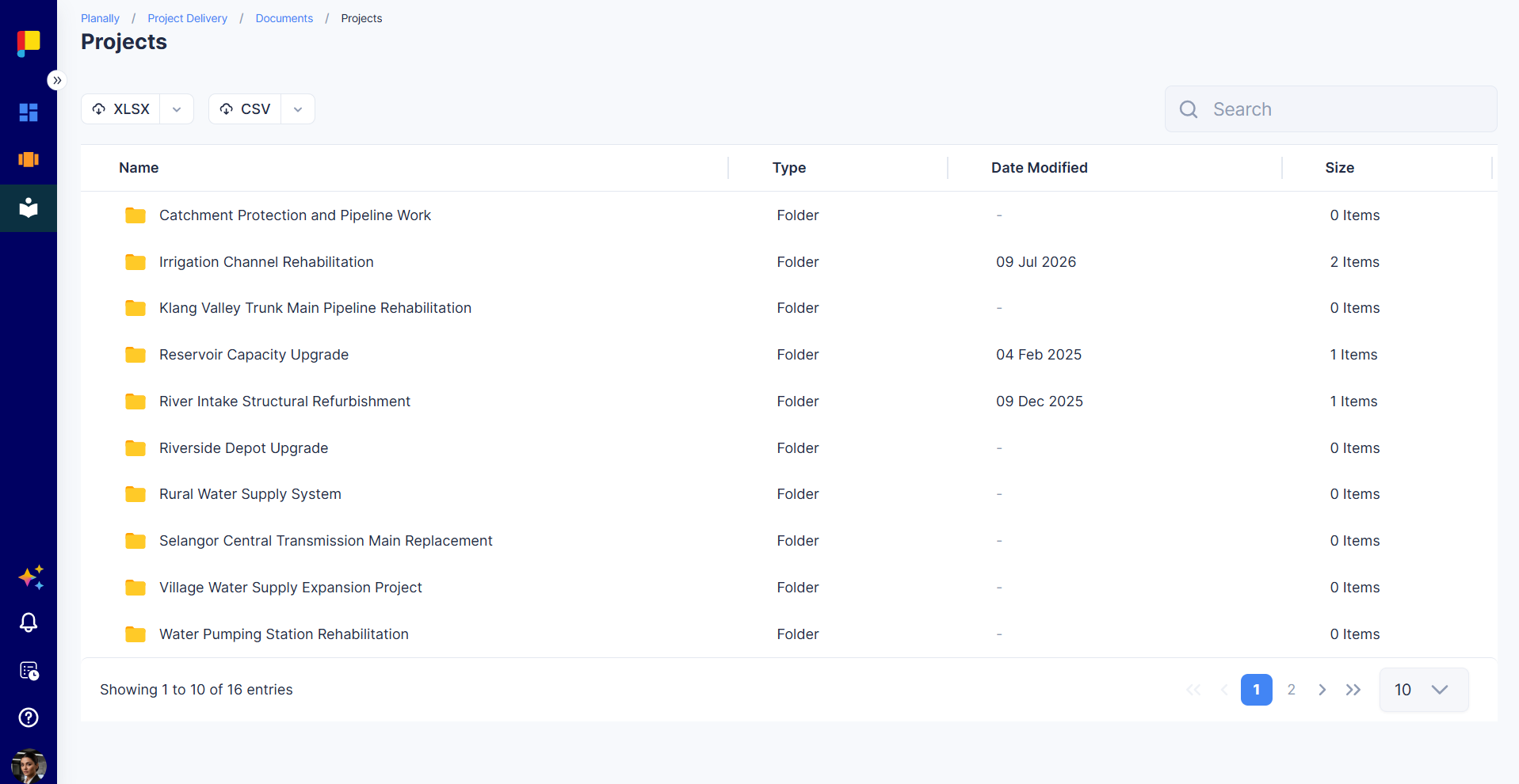
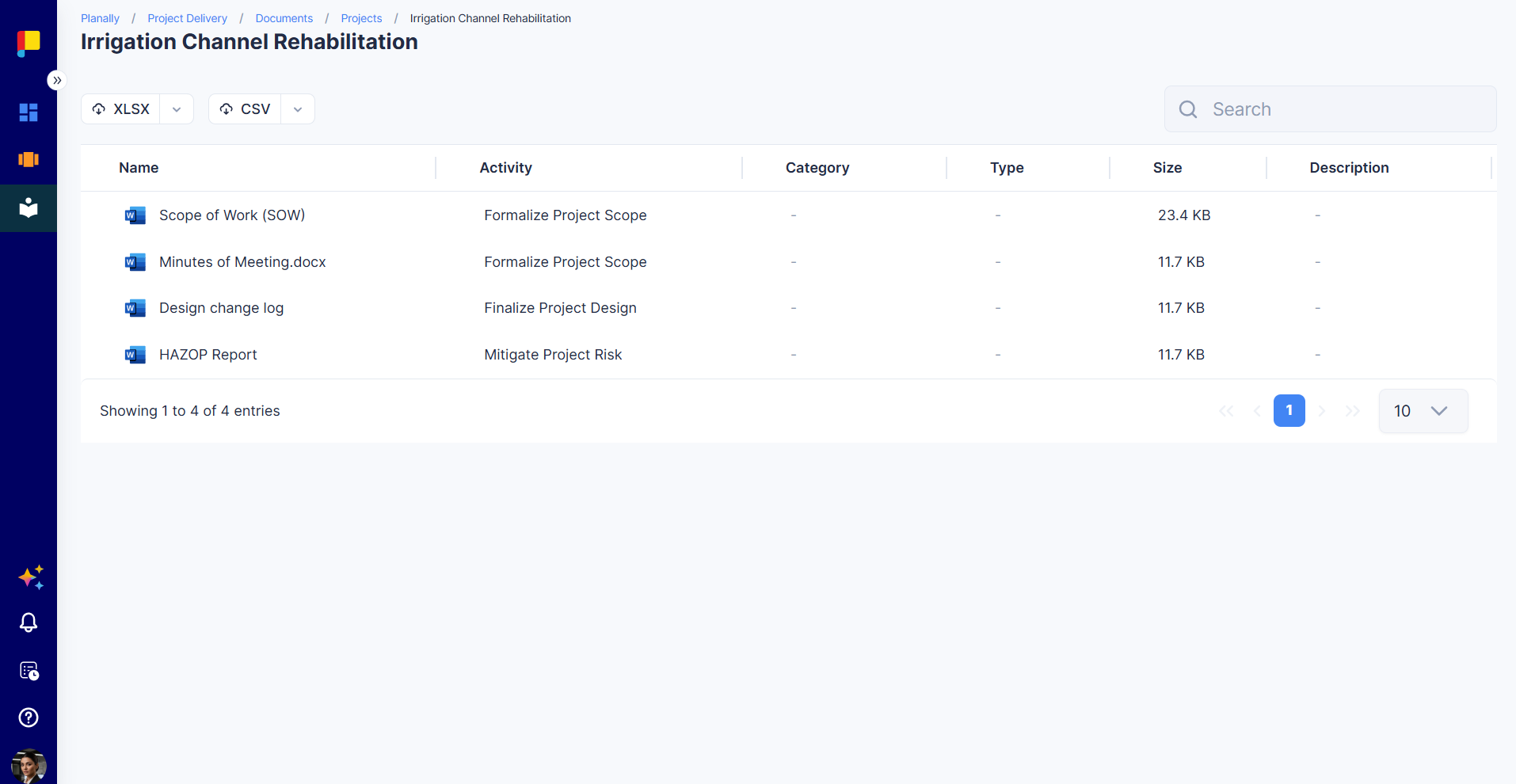
The Projects area shows the projects you have access to, giving you a complete, searchable record of every file uploaded across each one—without opening each activity.
¶ 3. Reference Documents
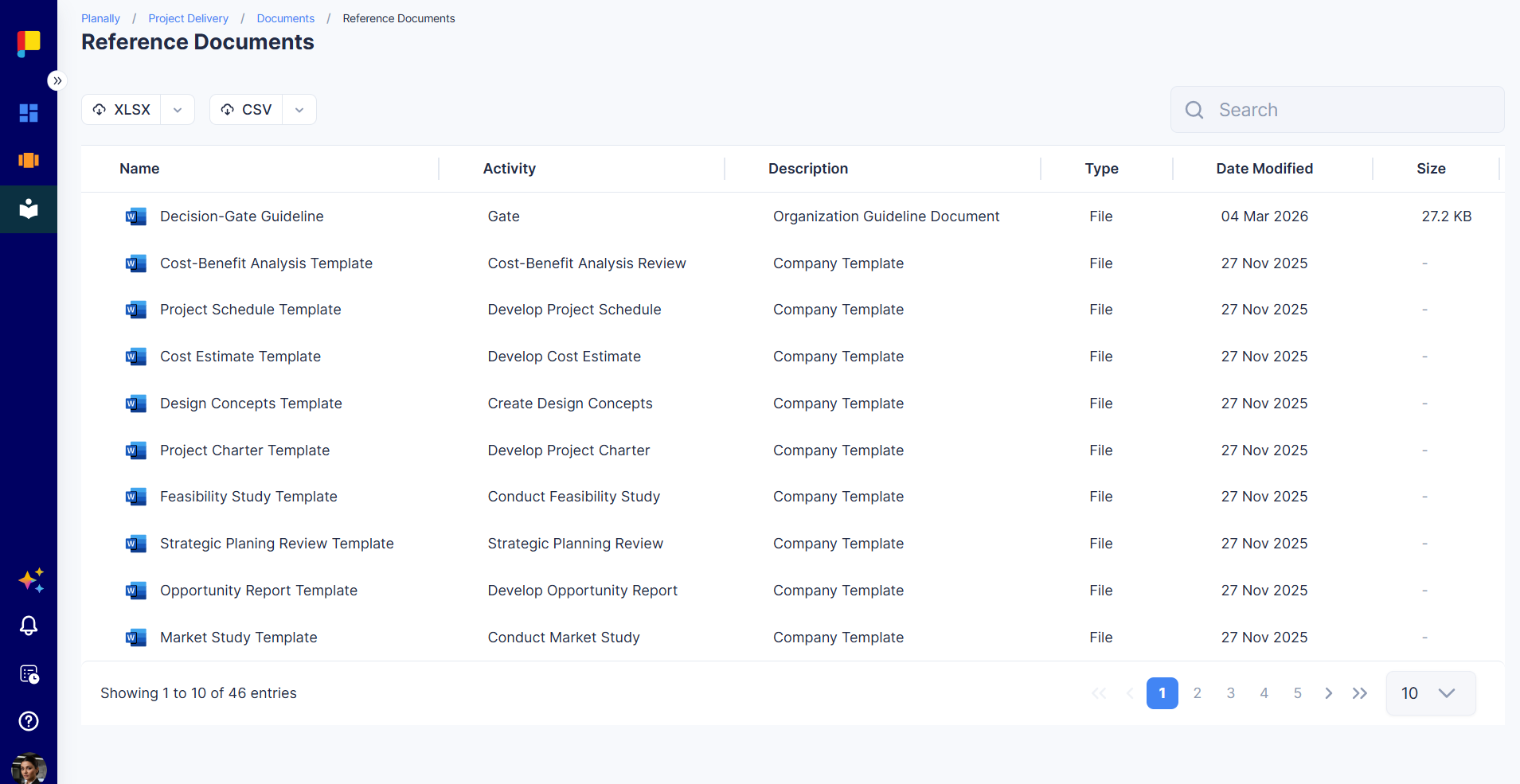
Reference Documents come from the Workflow Builder → Activities feature: each activity defined in a workflow can have Reference Documents attached to it, and Planally compiles them all into this one consolidated list — so you can find supporting material without opening each activity.
Each entry shows: Name, Activity (the source activity), Description, Type, Date Modified, and Size.
This is a read-only, consolidated view. The documents themselves are managed on the activities (in the Workflow Builder), not here.
¶ Best Practices
- Use the Virtual Library for the official, curated references your admin maintains.
- Use Projects to track down a file when you know the project but not the exact activity.
- Use Reference Documents to reach activity supporting material in one place.
- Search smart: use keywords for faster results across any folder.